Emitter Layout
Use Emitter Layout to correct the physical light sources shown in the 2D and 3D Visualizer. A logical Head groups control channels; an Emitter represents an optical source. Changing visualization leaves the DMX map, patch addresses, scenes, animations and node graphs intact.
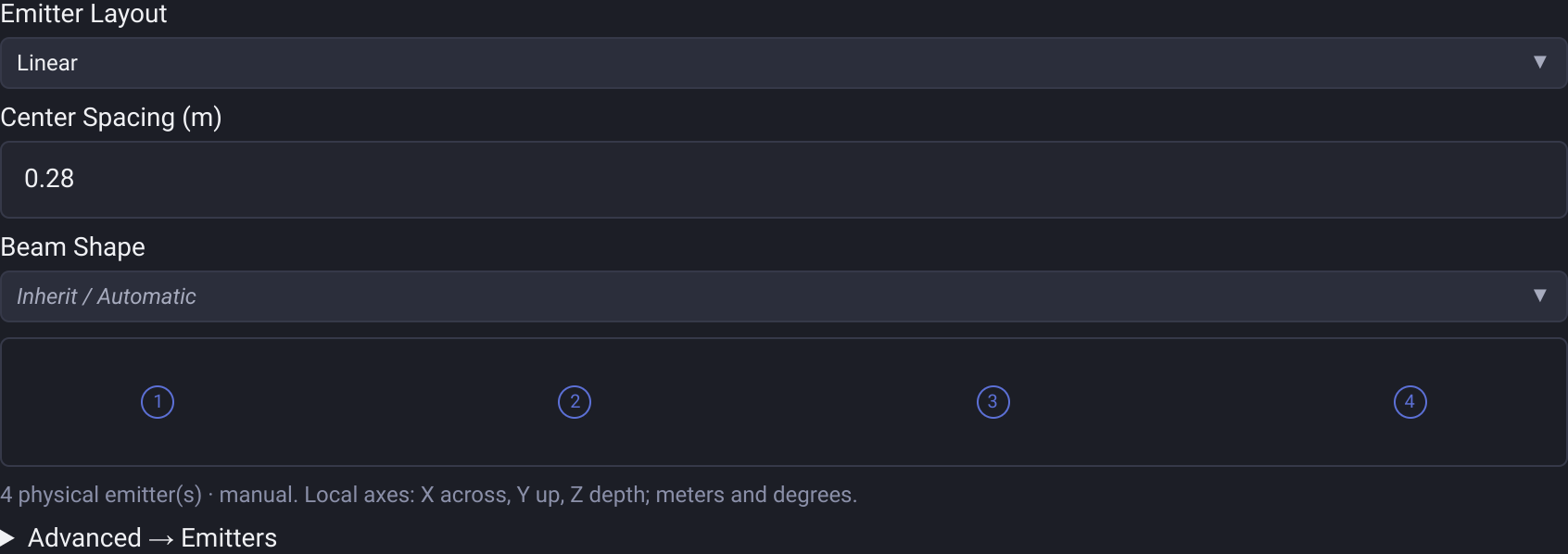
Choose a layout
Open Fixture Editor. Under 3D Model Preset, choose Emitter Layout:
- Inherit / Automatic uses the inherited configuration, imported geometry or automatic estimate.
- Linear centers the selected mode's sources in a line along local X. Center Spacing is the distance between adjacent centers in meters.
- Grid arranges sources across local X/Z, with editable spacing and column count.
The selected mode supplies the logical Heads; there is no separate head-count field. A profile setting applies to its modes unless overridden. On a mode without its own visualizer settings, choose Override Visualizer for This Mode. In the 3D selected-device configuration panel, the same controls change only that instance. Save the profile or project as appropriate to retain edits.
Reset Layout removes only this level's layout override. The section's existing Reset button removes all visualizer settings at that level.
One optic, several color groups
Expand Advanced → Emitters and choose Combine Heads for one physical optic controlled by multiple logical color groups. Each segment keeps a Head binding, color, brightness and strobe. Use the segment selectors, Add Segment, Remove and ↑ to choose bindings and order. Select a Movement / Optics Head for the shared mechanical movement and optical controls.
Separate Heads restores a linear source for each logical Head. Duplicate or remove emitters when the same control group affects several physical sources. Edit local X/Y/Z in meters and local XYZ rotations in degrees. Local Y is up; fixture mounting rotation rotates the emitter offsets before individual Pan/Tilt.

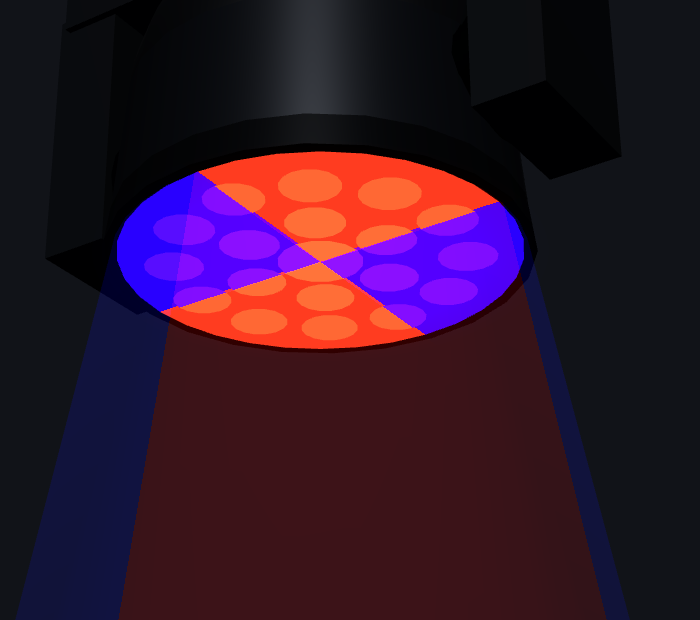
Circular sectors illustrate independently controlled colors. They do not reproduce a manufacturer's LED pattern. The physical 3D lens and beam show the same ordered sectors, repeated around the aperture and beam circumference to improve visibility from different angles. Switching off a segment darkens only its part of the lens and beam. Prism copies the complete color design; shared dimmer and shutter controls still affect all relevant segments.
Beam shape and dimensions
Choose Circular or Rectangular independently of the model and optical beam type. A uniform LED bar can use one rectangular aperture and frustum-shaped beam. Set aperture width and height in meters; these describe the emitting area rather than the entire housing.
Editing an emitter coordinate or rotation converts a generated layout to Custom while keeping its beam shape and aperture inherited. Later profile or mode changes still reach those fields. Values explicitly set for an individual emitter remain overrides, including when that emitter is duplicated.
This release supports multiple color segments on circular sources and uniform rectangular sources. A rectangular beam with independently colored pixel stripes is not supported yet. Imported GDTF sources retain their existing geometry and axes; synthetic layout editing is disabled for them.
Automatic estimates and older projects
Without explicit geometry, independent movement groups become separate sources, normally in a line. Multiple color groups with shared movement on a moving-head preset can become segments of one source. These are fallible estimates: review the displayed warnings, then use Combine Heads or Separate Heads to correct the interpretation.
Older projects also use these improved automatic layouts and mount rotations. Their appearance can change from the former square/triangle fallback; recorded fixture positions and lighting programming remain intact. Missing Head bindings produce warnings and are not reassigned by channel order. Explicit settings are kept until edited or reset. Reimporting a profile can leave saved bindings to Heads that no longer exist; you can save those bindings unchanged with a warning and correct them later. New or changed bindings must refer to Heads in the selected mode. A mode that overrides the profile layout validates its own bindings.
Spacing derived from overall dimensions is an estimate. Enter a measured center-to-center distance when accurate beam origins matter. The visualizer is a schematic preview: endpoint spots are not real surface intersections and do not establish physical clearance or safety near walls.
To repair a missing binding after reimport, expand Advanced → Emitters and replace the Missing H… value in its segment or movement selector with an available Head. Missing segment rows stay visible for repair; changing a coordinate does not silently delete them.
Ask an agent to repair appearance
Through MCP or WebMCP, describe the visible problem in ordinary language, such as “Four heads appear in a square, but the fixture is a bar.” The agent can inspect the effective layout, preview a visual-only correction, apply it to the intended instance and read back the result. A GDTF attachment is optional. The repair should not change channels, modes, patching or trigger lighting output.