Lesson 1.6: Hands-On Lab: Hardware Verification with the Simple Desk
You have mounted your lights, connected them in a clean daisy chain with genuine DMX cables, plugged in a \(120\,\Omega\) terminator, connected your USB interface, and set start addresses.
Before writing scenes or recording cues, professional technicians perform a Hardware Verification Line-Check.
This lesson introduces the Simple Desk—explaining why every lighting platform keeps a direct channel fader board, how to test physical fixtures channel by channel, and how to reverse-engineer unknown lights without an instruction manual.
1. What Is the "Simple Desk"?
In theatrical and stage lighting terminology, names vary depending on who you talk to:
- In Russian Stage Slang: It is universally nicknamed «расчёска» (the comb), because dozens of identical vertical channel sliders side by side resemble the teeth of a hair comb.
- In English Industry Terminology: Technicians call it Channel Faders, the Manual Fader Board, or a Preset Desk.
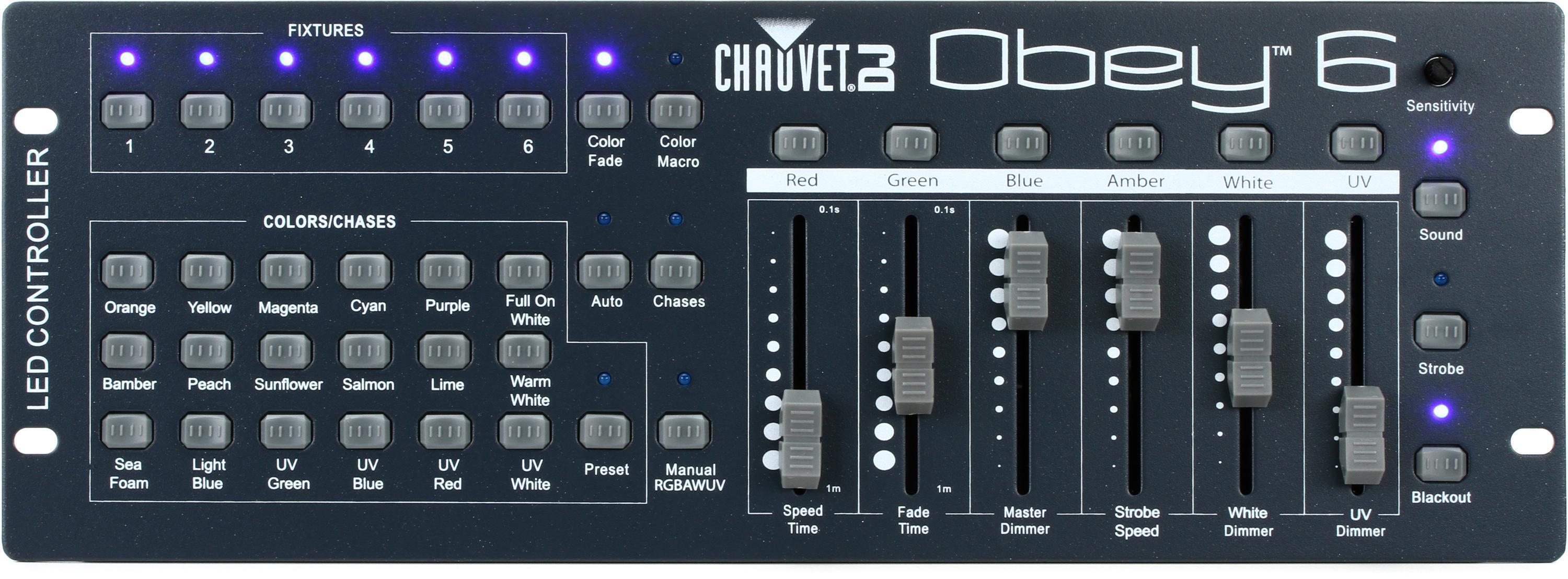
- In Physical Hardware Form: Portable 6-channel or 8-channel fader controllers look like this:
- In Unilighter and QLC+: The software screen is officially named the Simple Desk.
The Simple Desk completely bypasses fixture profiles, virtual palettes, and color pickers. It presents a raw grid of 512 faders representing the exact digital bytes (\(0 - 255\)) transmitted out of your DMX port.
When to Use the Simple Desk:
- Line Testing: Verifying that cables and interfaces are physically transmitting data.
- Addressing Sanity Checks: Confirming that Fixture 1 responds on channels 1–4 and Fixture 2 responds on channels 5–10 as planned.
- Reverse-Engineering Unknown Fixtures: Discovering channel orders on unbranded fixtures when the paper manual is lost.
- Emergency Manual Override: Instantly grabbing a single channel during a live event if a dimmer or fog machine needs manual forcing.
2. Step-by-Step Pre-Show Line Check Lab
Follow this hands-on procedure on every gig before opening your show file:
Step 1: Baseline All Zeros State
Open Unilighter and click the Simple Desk tab in the top navigation bar. If any faders are currently raised from previous cues or animations, click the All Zeros button at the bottom left:
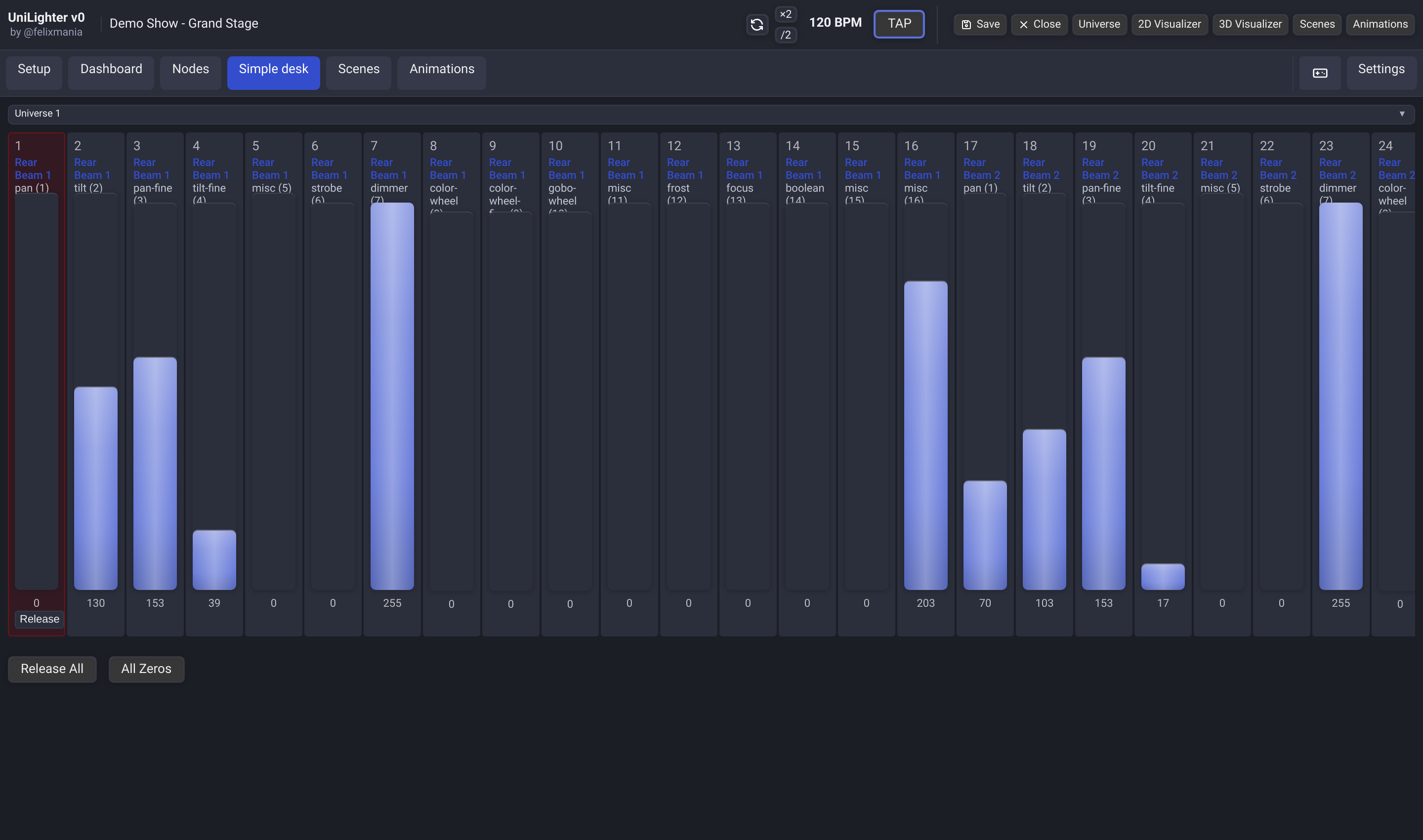
In this state:
- All 512 output channels stream digital
0(or are released). - All physical lights on the stage rig should be completely dark and silent.
Step 2: Testing Channel 1 (Intensity / Red Strike)
Now, test the first physical luminaire. Click on Fader 1 and smoothly slide it up to approximately 80% (value 204):
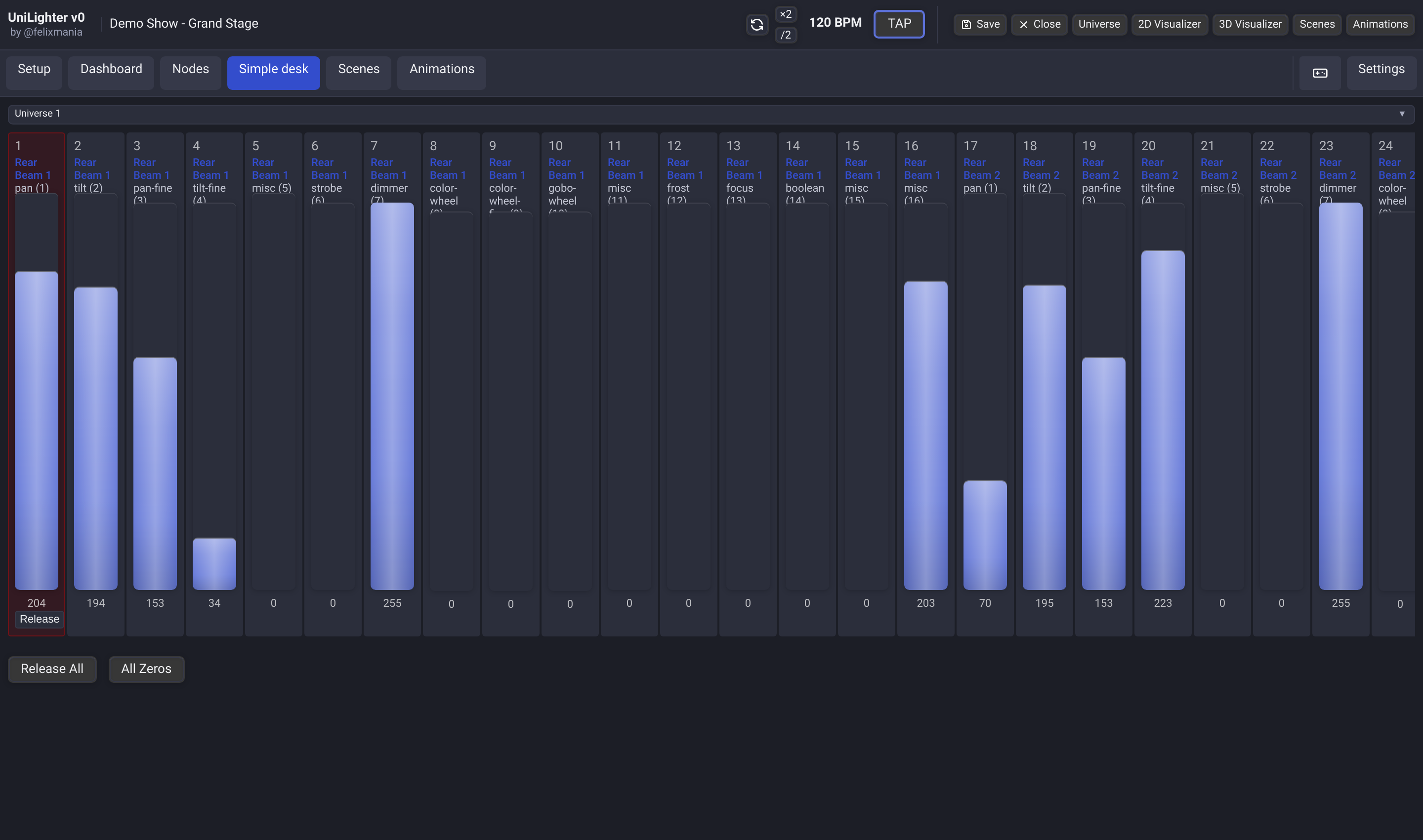
Notice what happens in the Unilighter interface:
- Red "Has Control" Border: Fader 1 highlights with a red outline, indicating that manual control has taken priority over all background scenes or animations.
- Glowing Level Bar: The fader fills with a glowing blue gradient, displaying the exact byte value
204. - Release Button: A dedicated Release button appears beneath the value, allowing you to release just that single channel back to automated control.
- Physical Reaction: Look at the stage. Fixture 1 should immediately respond (e.g. pan to 80% or illuminate its red LED cluster).
- If the light responds immediately: your USB interface, XLR cabling, and fixture power are 100% verified.
- Click Release or slide Fader 1 back down to
0.
3. Reverse-Engineering an Unknown Light
Touring technicians frequently encounter rental rigs with cheap, unbranded LED lights or Chinese moving heads where the user manual is long gone.
Using the Simple Desk, you can map out every channel in under two minutes:
| Action on Simple Desk | What You Observe on the Light | What the Channel Actually Is |
|---|---|---|
| Push Fader 1 from 0 to 255 | Fixture illuminates Red | Channel 1 = Red |
| Push Fader 2 from 0 to 255 | Fixture illuminates Green | Channel 2 = Green |
| Push Fader 3 from 0 to 255 | Fixture illuminates Blue | Channel 3 = Blue |
What If Nothing Lights Up? The Master Dimmer & Shutter Puzzle
If you push Fader 1 to 255 and nothing happens, do not assume the light is broken! Many fixtures require two or three channels to be open simultaneously:
- The Master Dimmer Gate:
- In 4-channel or 7-channel PARs, Channel 1 is often the Master Dimmer. If the Master Dimmer is at
0, pushing Red, Green, or Blue will show nothing! - Test: Push Fader 1 up to
255and leave it there. Then push Fader 2, 3, and 4. If the colors appear now, Channel 1 is the Master Dimmer.
- In 4-channel or 7-channel PARs, Channel 1 is often the Master Dimmer. If the Master Dimmer is at
- The Mechanical / Electronic Shutter (Strobe):
- On moving heads, light will not exit the lens unless the Shutter channel is open!
- On most fixtures:
- Value
0 - 7: Closed (Blackout) - Value
8 - 15or10 - 250: Open / Strobe modes - Value
251 - 255: Full Open
- Value
- Test: Set Fader 1 (Dimmer) to 255. Slowly raise Fader 5 or 6 until the shutter clicks open or passes the blackout dead-zone.
- Discovering Pan & Tilt:
- With moving heads, pushing Fader 1 or Fader 2 will cause the head to physically rotate horizontally (Pan).
- If Fader 1 causes wide rotation and Fader 2 causes subtle microscopic twitches, Fader 1 is Pan Coarse (8-bit) and Fader 2 is Pan Fine (16-bit).
Once you note the channel order on paper, you can open the Fixture Profile Editor, configure the channels, and patch it in the Device Patch screen in seconds.
4. The Limitation: Why You Cannot Busk a Show on Faders
The Simple Desk is an invaluable diagnostic tool, but you should never attempt to run an actual live show purely on raw channel faders:
- Cognitive Overload: Controlling ten 24-channel moving heads requires managing 240 individual faders simultaneously.
- Color Mixing Headaches: To change 8 moving heads from orange to cyan on a Simple Desk, you would need to manually adjust 24 separate red, green, and blue faders while keeping proportions accurate.
- Speed & Transitions: Moving a physical head from a stage drum kit to a guitar soloist requires coordinating Coarse Pan, Fine Pan, Coarse Tilt, and Fine Tilt at the exact same fraction of a second.
This is why modern lighting workstations use Fixture Profiles and the Live Dashboard (which we will build in Modules 3 and 4)—packaging hundreds of raw channels into intuitive visual color pickers, 2D XY position pads, and one-touch scene buttons.
📝 Self-Assessment Quiz
Think through these real-world troubleshooting puzzles:
-
Scenario A: You connect an unfamiliar moving head set to Start Address 1. You push Fader 1 to 255 (Dimmer) and Fader 4 to 255 (Red LED), but the fixture remains completely dark. On Fader 6, when you slide it to value 15, the red light suddenly turns on. When you slide Fader 6 to 100, the red light begins flashing rapidly. What is Fader 6 controlling?
-
Scenario B: A venue technician notices a PAR can flickering wildly on stage. To diagnose whether the issue is a software bug or a physical cable problem, the technician opens Unilighter's Simple Desk, pushes the fixture's channel faders up to 255, and disconnects the laptop from the Wi-Fi. The light holds steady with zero flicker. What does this test tell you?
-
Scenario C: While testing a new moving head on the Simple Desk, you find that Fader 3 rotates the head horizontally across a full 540-degree circle. When you move Fader 4, the head barely seems to move, only vibrating slightly by a fraction of a millimeter. What is Fader 4 designed for, and why is it necessary?