Remote Control & Mobile Workflows
The Remote Control interface transforms any smartphone, tablet, or secondary laptop into an untethered, wireless lighting console. Built directly on modern Web standards, it eliminates the need to install third-party companion apps or purchase expensive proprietary hardware remotes.
Whether you are walking a stage to focus moving heads, checking audience blinders from the back of the arena, or handing a stage manager an auxiliary tablet with worklight cues, Unilighter provides real-time, zero-latency control over your local network.
Choose a remote view
Use the Remote Dashboard workflows below to operate your existing Dashboard widgets. For a purpose-built touch layout, create a Control Surface from Dashboard → Surfaces and share it from Unilighter Desktop on the local network.
A Surface secret link grants access only to that surface, without an account or PIN approval. Its Share dialog provides QR, Copy Link, connected guests, Pause access, Resume access and Revoke link. Publishing it does not enable Remote Dashboard access. The architecture and pairing table below describes Dashboard connections; guest Surface sharing is currently Desktop-only.
⚡ Connection Architectures: Desktop vs. Browser
Unilighter supports two remote control architectures depending on whether you run Unilighter Desktop or the Web Browser Console:
| Feature | Unilighter Desktop (Recommended) | Web Browser Console |
|---|---|---|
| Architecture | Client-Server (Local HTTP + WebSocket) | Peer-to-Peer WebRTC DataChannels |
| Internet Dependency | 100% Offline (local Wi-Fi only) | Requires Internet initially to load apps & exchange SDP |
| Pairing Process | Instant QR Code + 4-digit PIN confirmation | Manual SDP offer/answer or signaling |
| Device Authorization | Device Memory (auto-reconnects next time) | Session-based |
| Port / Firewall | TCP 3848 (configurable) |
Standard WebRTC UDP ports |
🖥️ 1. Unilighter Desktop: LAN Client-Server Host (Recommended)
In Unilighter Desktop, the application acts as a dedicated local HTTP and WebSocket server directly on your workstation:
- Enable Server: Go to Settings (
⚙️) \(\rightarrow\) Remote control and click Enable remote control. - Scan Live QR Code: Point your phone camera at the dynamically generated QR code (or visit the displayed local IP address, e.g.
http://192.168.1.100:3848). - Approve via PIN: The phone displays a 4-digit confirmation code. A popup appears in Desktop—click Allow to grant access.
- Permanent Device Memory: Once approved, Unilighter Desktop remembers your phone so you can reconnect instantly during the show.
- Firewall Notice: If your phone cannot open the page, ensure TCP port
3848is allowed through your computer's firewall (Windows Defender, macOS Firewall, or Linuxufw).
👉 Read the complete step-by-step manual: LAN Remote Control & Mobile Dashboard Guide.
🌐 2. Web Browser Console: WebRTC Peer-to-Peer (Fallback)
If you are running the web console at console.unilighter.cc without the desktop app, remote control operates via direct browser-to-browser WebRTC DataChannels:
- Pairing: Navigate to
/#/remote-connecton the remote device. - SDP Exchange: The host console generates a Session Description Protocol (SDP) offer. The client accepts the offer and creates an answer.
- Connection Constraints: Both the host computer and the remote phone must have an active internet connection to load the console scripts and establish the WebRTC handshake. Once connected, control signals travel over the local network.
📱 Mobile-Optimized Remote Interface
The Remote Control view is specifically optimized for touchscreens:
- Touch-Friendly Controls: Large vertical faders, responsive rotary knobs, high-contrast RGB/RGBW color pickers, and 2D Pan/Tilt XY pads designed for single-thumb operation.
- Independent Layout Scaling: Each remote device can independently resize and arrange its widget cards to fit its specific screen dimensions (from compact smartphone screens to 12.9" iPad Pros) without affecting the desktop operator's layout.
- Multi-Device Real-Time Sync: When an operator adjusts a fader on stage, the change instantly reflects on the front-of-house desktop monitor and 3D Visualizer.
🛠️ Practical Production Workflows
1. Solo Stage Focus Walking
In traditional setups, focusing moving heads or setting beam angles requires two people: one on stage yelling instructions and another at the console pushing faders. With Remote Control, a single lighting designer can walk the stage with a phone in hand, fine-tuning Pan, Tilt, Zoom, and Focus while standing exactly where the performer will be.
2. Dedicated Stage Manager & Tech Panels
Create a Control Surface containing only the worklights, lectern cues or other controls needed by the stage manager, and share its private link from Unilighter Desktop. Guests receive that surface alone. A Group Container Widget organizes the full Dashboard, but does not by itself restrict a Dashboard guest's access to other widgets.
3. FOH Sound & Lighting Separation
In smaller venues where the lighting desk is positioned backstage or in a side booth, the operator can carry a lightweight laptop or tablet to the Front-of-House (FOH) audience area during soundcheck to verify beam sightlines and color balance from the crowd's perspective.
Read more in the Live Dashboard Guide and the Console Interface & Screen Reference.
Functions Widget Random and Shuffle
The remote Functions Widget exposes the same actions as the host Dashboard:
- Exclusive Buttons: Random selects another inactive function and releases the other functions in that widget.
- Hold Buttons: Hold Random to run a random function until release. Other active functions stay on. Releasing, cancelling a touch, leaving the remote page, or disconnecting releases the held function; if several controllers hold Random together, it stays on until the last one releases.
- Cue List: Random changes the selected function without changing order. Shuffle appears only when Show Shuffle button is enabled in the host widget settings. Both preserve On / Off.
- Toggle Buttons and Scenario do not expose Random. Shuffle is exclusive to Cue List.
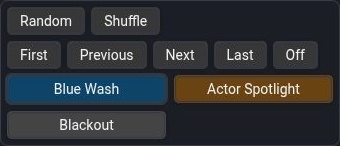
The host performs random selection and shuffling, then synchronizes the result to connected remotes. Shuffle changes the saved project order and selects the first shuffled cue; it has no undo command here. Use it only for lists where order is unimportant. See Function Widget and Cue Lists.
Android app
Unilighter Mobile provides native Art-Net/sACN and supported USB DMX output, Android MIDI input, and local Dashboard and Surface hosting. Its settings and background limits differ from Desktop; follow the Mobile guide for setup.
Combo Functions
Remote Function Widgets support Combo Functions with the same names, logical active state and Toggle/Hold/Exclusive behaviour as the host. Multiple holds share one activation; disconnect and connection timeout release the remote participation without stopping a remaining local hold. Definitions and Combo: Running Functions are configured on the host.