Trace fixture control with Layers
Developer mode only. Open Layers beside Controls in the console's top bar to see which functions currently control each fixture property. The panel is read-only: selecting an item does not change your lights.
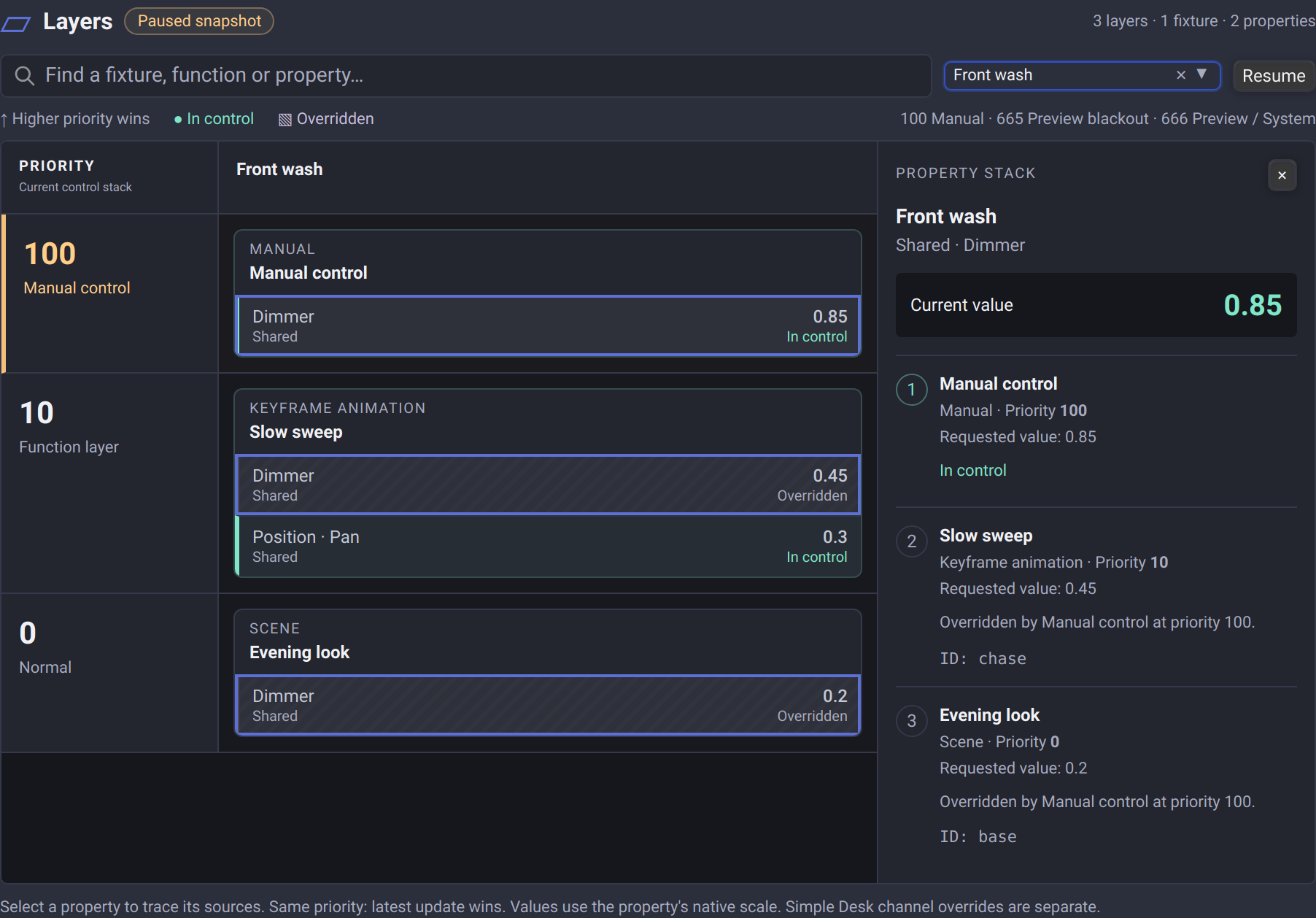
Read the diagram
Each row is an effective priority, with higher numbers above lower numbers. Each column is a fixture. Cards identify the scene, animation or node requesting control, followed by its properties and requested values.
- In control: the source currently owns this property. A solid mint edge marks it.
- Overridden: the request remains in the stack, but another source owns the property. A striped background marks it.
- A function can own one property while another is overridden. For example, an animation can keep moving Pan while a manual fader owns Dimmer.
Select a property to highlight its requests across the layers. The property stack shows the current value, each source's requested value, its full priority and why it is overridden. At the same priority, the most recent update wins. Animation priorities can include a fractional offset; the diagram preserves the exact ordering. Hover over a priority or open the property stack to inspect its full value.
Values use each property's native scale: normalized values such as 0.85, slot indices, or raw channel values. This is a fixture-property inspector; it does not report every transformation into final DMX bytes.
Recognize the special layers
| Priority | Label | Meaning |
|---|---|---|
100 |
Manual control | The usual priority of manual fixture adjustments. |
665 |
Preview blackout | Dimmer-zero requests used to isolate a preview from the rest of the rig. |
666 |
Function preview / System | The priority used by function preview and the scene editor. |
These labels describe the standard uses of those numbers. A function with a custom priority still keeps its own source name and type. There is no separate built-in preview layer at 667 in the current version.
Inspect a busy project
Search for a fixture, function or property, or choose a fixture in All fixtures. Searching by a source retains the entire matching property's stack, so its rivals stay visible. Projects with more than 12 matching fixtures have previous/next page buttons.
Choose Pause to freeze the displayed snapshot while inspecting a changing show. Playback continues. Resume returns to current values. The live view refreshes about four times per second while open and visible.
Drag the panel's lower edge to resize it. Scroll the diagram to reach more priorities or fixtures. On narrow screens, the property stack appears below the diagram; scroll down within the panel to read it. Property buttons also support keyboard focus and activation.
Only properties with retained control requests appear. A running function with no retained requests has no card. Closing the panel stops its inspection updates. Changing projects clears the selection and paused snapshot.
Simple Desk overrides act on universe channels separately and are not included in these property stacks. Use Simple Desk or the Universe view when checking channel-level output.
See Control Priorities for priority and release behavior, and Screens Guide for the surrounding console workspace.