Assign Mode & Bindings
Assign Mode connects console faders, knobs, buttons and color controls to MIDI controllers, keyboard shortcuts and OSC signals from Control Surfaces. The assignment dialog and Bindings Manager are available in the web console, Unilighter Desktop and Unilighter Solo.
Dashboard bindings are available as soon as the loaded project's controls are ready, even if you open a Node Graph before visiting Dashboard. They remain available when you switch console pages. Keyboard shortcuts are ignored while typing in text fields.
Function Widget execution is blocked while the visible Dashboard is in Edit mode. Switching to a Node Graph or another console page allows those bindings to run; returning to Dashboard restores its selected editing mode.

🎮 How to Map a Control
- Enter Assign Mode with the controller icon in the top navigation bar. The button shows the active state.
- Click the fader, knob, cue button, or color control that you want to map.
- In the assignment dialog, choose MIDI, Keyboard, OSC or Surface. Learn or select the source, choose the relevant behavior, add a label, and click Add.
- Leave Assign Mode to operate your controls.
To recall a saved Color Picker or XY Pad preset, click its saved swatch or position button in Assign Mode and assign it like any other button. This is available in Device Control and Node Graph widgets. Renaming an XY preset normally keeps its assignment; deleting a preset removes its assignment. In older projects, duplicate presets can share an assignment: deleting one keeps it for the others, and renaming one separates it from the shared assignment.
The 13 built-in buttons around the Color Picker wheel can also be assigned in these widgets. Click a ring button in Assign Mode to open its assignment without changing the color. Its assignment is independent of any saved swatch with the same color.
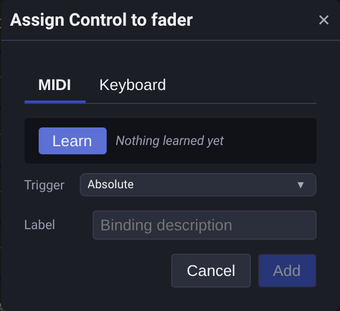
Edit an existing assignment
In Assign Mode, click the mapped control and choose Edit beside the entry under Current Bindings. Change its label or available behavior, such as trigger mode, encoder speed, toggle values or MIDI feedback, then click Save. Cancel discards the changes. The original input event and its destination remain unchanged; create a new assignment to use a different event.
🎛️ MIDI Mapping & Auto-Learn
- Click Learn, then move a physical fader, turn an encoder, or press a trigger pad. Unilighter records the incoming channel and message pattern automatically.
- Trigger behavior is selected with one click:
- Absolute: For standard faders and potentiometers.
- Toggle: For buttons that alternate between two states. On controls that support it, enable Custom values and set the two values explicitly.
- Encoder: For relative endless rotary controls, using accumulated steps to avoid value jumps.
- Add a descriptive label such as Master Dimmer Fader #1 or Intro Wash Trigger before saving.
After a MIDI event is learned, the modal immediately checks global bindings and Dashboard widget bindings. If the same control is already assigned, an Already assigned panel shows the existing target and binding label so you can choose a different event or remove the old assignment before continuing.
To assign an action to a key release, capture its explicit Note Off event with Learn. An Absolute mapping uses the release velocity. A Custom Value mapping configured in Bindings Manager applies its value when release velocity is 127. A Note On mapping instead receives zero when its corresponding Note Off arrives, so held actions release regardless of release velocity.
Encoder speed
Adjust how far a continuous parameter moves for each MIDI encoder tick. Open Settings → MIDI → Encoders and set MIDI encoder speed.

1×preserves each control's original step.0.25×makes it four times slower;2×makes it twice as fast. Enter any positive multiplier, including fractions.- The global setting is saved locally in this application and applies to existing and new bindings that inherit it. It is separate from project data.
- Speed affects faders, knobs, both XY axes and the Hue, Saturation and Value channels of color pickers. Buttons, preset triggers and discrete switches keep their existing behavior. Other binding modes, keyboard input and OSC are unaffected.
For an individual assignment, select Encoder, turn off Use global speed and enter Encoder speed before clicking Add. The field appears only while Use global speed is off and starts at the current global speed. The same visibility rule applies when editing an existing assignment in Bindings Manager.
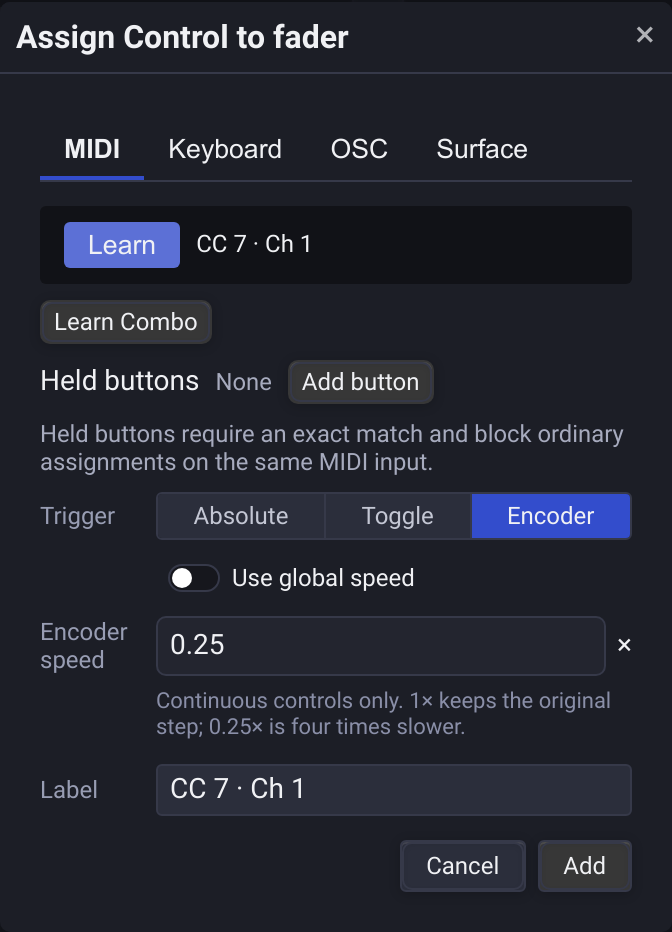
An individual multiplier replaces the global one: it remains unchanged when the global setting changes. Turn Use global speed back on to resume inheritance. Changing speed takes effect without reloading the project.
To change an existing binding, right-click the navbar controller button, open Global or Dashboard in Bindings Manager, click Edit, adjust its speed and click Save. Cancel discards the draft. Dashboard overrides travel with the project; global-binding overrides stay in application settings.
Held-button MIDI combinations
Use different held buttons to give the same physical control several assignments. For example, an encoder can control Dimmer normally, Pan while holding one button, and Hue while holding another.
- Open the destination control in Assign Mode and select MIDI.
- Click Learn Combo. Hold the modifier button or buttons, then move the main control or press the main button last.
- Release all buttons. The capture finishes after the combination has formed and its buttons are released; a rotary control does not need a release message. For button destinations, release the main button too. Channel Pressure and Program Change can also be the main signal; these finish capture when the modifier buttons are released.
- Choose the trigger behavior, enter a label and click Add. Select Encoder for an endless relative encoder.
The existing Learn button still captures one incoming event immediately. Alternatively, learn the main control with Learn, then use Held buttons → Add button to capture each modifier with a complete press and release. Remove a held button by clicking its labelled × button. The same editor is available in Bindings Manager.
- Use momentary Note or CC buttons that send both press and release. A CC modifier is pressed at a positive value and released at zero. Hardware buttons configured to latch need to be changed to momentary mode on the controller.
- Modifiers have a dedicated role. Remove an existing action from a button before using it as a modifier; the editor reports conflicting assignments without deleting them.
- Matching is exact and independent of press order. Holding A+B requires an explicit A+B assignment; A-only and B-only assignments do not run.
- While any configured modifier is held, ordinary assignments on that MIDI input are blocked. An unassigned combination does nothing.
- The modifier and main control must come from the same MIDI input. Other inputs remain independent. The mappings keep the existing message-based device matching; identical controllers can use the same mappings without sharing held state.
- A Hold action stays active until its main button is released, even if its modifier is released first. Disconnecting that input or changing projects releases its holds; another active source can continue holding the same action.
- Learn, Learn Combo and the manager's Listen mode suppress new actions while capturing. Releases of already active Hold actions remain effective.
Only held combinations are supported; pressing a modifier does not latch a mode. Absolute controls keep their existing immediate takeover behavior. Projects containing combinations require a client version that supports them. Dashboard mappings stay in the project; global mappings stay in application settings.
Controller feedback: LEDs and motor faders
Once MIDI feedback is enabled for an output, Unilighter sends the state of mapped targets to it, so the controller shows changes made from Dashboard, cues or other controllers:
- A button LED lights while its target is active: a toggled scene, a held function, or a Toggle mapping in its second state. A Custom Value mapping lights while the target holds that value, so preset pads behave like radio buttons.
- A fader or knob mapped with Absolute receives the target's position. Motor faders follow it; Encoder mappings update the LED ring. New Pitch Bend mappings use 7-bit resolution by default.
- Feedback answers the same Note, CC or Pitch Bend message that the control sends. Buttons send
127for on and0for off by default. If your controller uses other values, for example velocity-coded LED colors, set LED on and LED off under Feedback in the assignment dialog or in Bindings Manager. - Turn off Send feedback for a mapping that should never drive the controller.
All MIDI inputs are enabled by default. In Settings → MIDI → MIDI Devices, switch off any input you do not want to use. Disabled inputs do not trigger bindings, Learn or the monitor; the choice is saved on this device across projects. Disabling an input releases its held actions. Disconnected disabled inputs remain listed by ID; turn one back on to forget its disabled state.
MIDI feedback is off by default for every output. In Settings → MIDI → MIDI Devices, explicitly enable only the output ports intended for controller LEDs or motor faders. Every output has its own switch, saved on this installation (not in the project). All enabled outputs deliberately mirror target states: only enable controller ports. Feedback is paused when its associated input is disabled. If an output cannot be associated with an input, feedback is also paused while any input is disabled; associate it with an enabled input to resume safely. For motor faders, an optional Controller input selector associates an output with one specific input; automatic association is used only when names match uniquely. Repetitive messages actually echoing back recent output disable the offending output rather than dropping incoming MIDI; fast legitimate LED updates do not trigger this safeguard. Do not enable virtual loopback outputs such as IAC Driver or loopMIDI.
While you move a motor fader, Unilighter does not send it intermediate positions; the final position follows once you let go. A press that leaves its target unchanged, for example on an already active scene, restores the LED if the controller lit it itself.
Pitch Bend compatibility: New mappings default to 7-bit (MSB). Select 14-bit (full) in the assignment dialog or Bindings Manager if the controller sends the full 14-bit range. In 7-bit mode MSB=127 reaches 100% even when LSB stays zero; a native 14-bit receiver interprets E0 00 7F as about 99.22%. Existing mappings without a 14-bit setting keep their 7-bit MSB interpretation and learned LSB filter; explicitly selected 14-bit mappings remain 14-bit.
To check a controller's resolution, temporarily select 14-bit (full) for an Absolute assignment and move the physical control to its maximum. If the target stops just below 1, the controller may send only the 7-bit MSB; select 7-bit (MSB) and try again. A restricted or uncalibrated controller range can also prevent reaching 1, so check its configuration if the result is unclear.
Alternatively, enable the MIDI monitor below and watch the controller's In Pitch Bend value while moving it through its range. The monitor shows the combined 14-bit value: 16383 is the full maximum, while 16256 at maximum and values changing in multiples of 128 are typical of a controller that sends only the MSB with a zero LSB. Movement in smaller increments indicates that the LSB is also changing.
Limits:
- Held-button combinations, Program Change and Channel Pressure mappings do not send feedback. Click actions without a state (for example Next in a cue list) send none either.
- When one control is mapped to several targets, its LED shows whichever target reported last.
- Physical faders without motors cannot show the target's position; they take control as soon as they move.
- Unilighter Mobile for Android receives MIDI but does not send feedback yet.
MIDI monitor
Settings → MIDI → MIDI Devices → Monitor MIDI messages lists each control that sends a message, with its device, latest value and message count, and every feedback message sent to a controller (Out). Keep Pause MIDI bindings while monitoring on to inspect a controller without triggering actions: held actions are released when monitoring starts, and bindings resume when you stop the monitor or leave the page. Learn keeps working while bindings are paused.
⌨️ Keyboard Shortcuts Mapping
- Open the Keyboard tab and click Press Key.
- Press a key or combination such as
Space,1,Shift + A, orCtrl + F. - Choose Default to use the control's normal behavior, or Custom Value and enter a value from
0to1. - Click Add. Existing assignments are shown immediately under the Already assigned warning when the captured combination is already in use.
OSC and Surface Mapping
Select a Surface input
Open Dashboard, enable Assign Mode, and click the destination control. In Surface, choose the surface and input control.
- A single-channel source selects its channel automatically.
- An XY pad requires X or Y; a color picker requires Hue, Saturation or Value. Create a separate binding for each destination channel.
- Faders, knobs, XY and color channels use Absolute automatically. Mode appears only for button sources in this tab.
- Already assigned shows existing assignments matching this address and argument.
Click Add to save an ordinary OSC binding. Changing the source control's visible label does not affect it; changing its control key or address requires reassignment. See Create and operate Surfaces.
Enter or learn an OSC signal
In OSC, enter Address / pattern and a zero-based Argument index. For example, /surfaces/xy-1 uses argument 0 for X and 1 for Y; /surfaces/color-1 uses 0, 1, 2 for Hue, Saturation and Value.
Alternatively, click Learn and operate a surface input. A one-argument event selects its argument automatically; a multichannel event requires you to choose one. Click Stop learning when finished. While learning, captured input does not start new actions; releases of already active holds remain effective, including releases caused by disconnecting.
The OSC tab configures internal signal bindings; it does not enable a network OSC receiver in Unilighter Desktop.
Addresses and patterns
An exact address matches only that signal. Patterns match within path segments; wildcards do not cross /. Every matching binding runs, so one signal can reach several targets.
| Pattern | Matches |
|---|---|
/surfaces/fader-1 |
Only this exact address. |
/surfaces/fader-* |
Any suffix after fader- in that segment. |
/surfaces/button-? |
One character after button-. |
/surfaces/button-[1-3] |
Buttons 1, 2 or 3; [!1-3] excludes those characters. |
/surfaces/{strobe,blackout} |
Either named signal. |
OSC binding modes
| Mode | Behavior |
|---|---|
| Absolute | Uses the incoming numeric value directly. For a target Toggle button it sets on/off state; a Trigger target reacts to a positive event; a Hold target follows press/release. |
| Toggle | A positive event alternates the target state or switches a continuous target between its endpoints. Zero releases do not toggle it. |
| Relative | Treats the argument as a numeric delta for a continuous target, rather than an absolute position. |
| Custom Value | A positive event applies the configured value. Use it for a preset, not a held action requiring release. |
For a held cue, use a Hold surface button and Absolute. For a surface Toggle button that should set a target Toggle button to the same state, also use Absolute; Toggle binding mode instead flips the target on each positive event.
Surface input waits until Dashboard targets have registered for the current project load. Reloading a project discards previous input and releases active holds; waiting input is not replayed. Surface controls show the actual state of their targets, including changes made through Dashboard, cues or MIDI.
🗂️ Global Bindings Manager
Right-click the navbar controller button to open the Global Bindings Manager, where you can review, edit, search, or delete active show mappings.
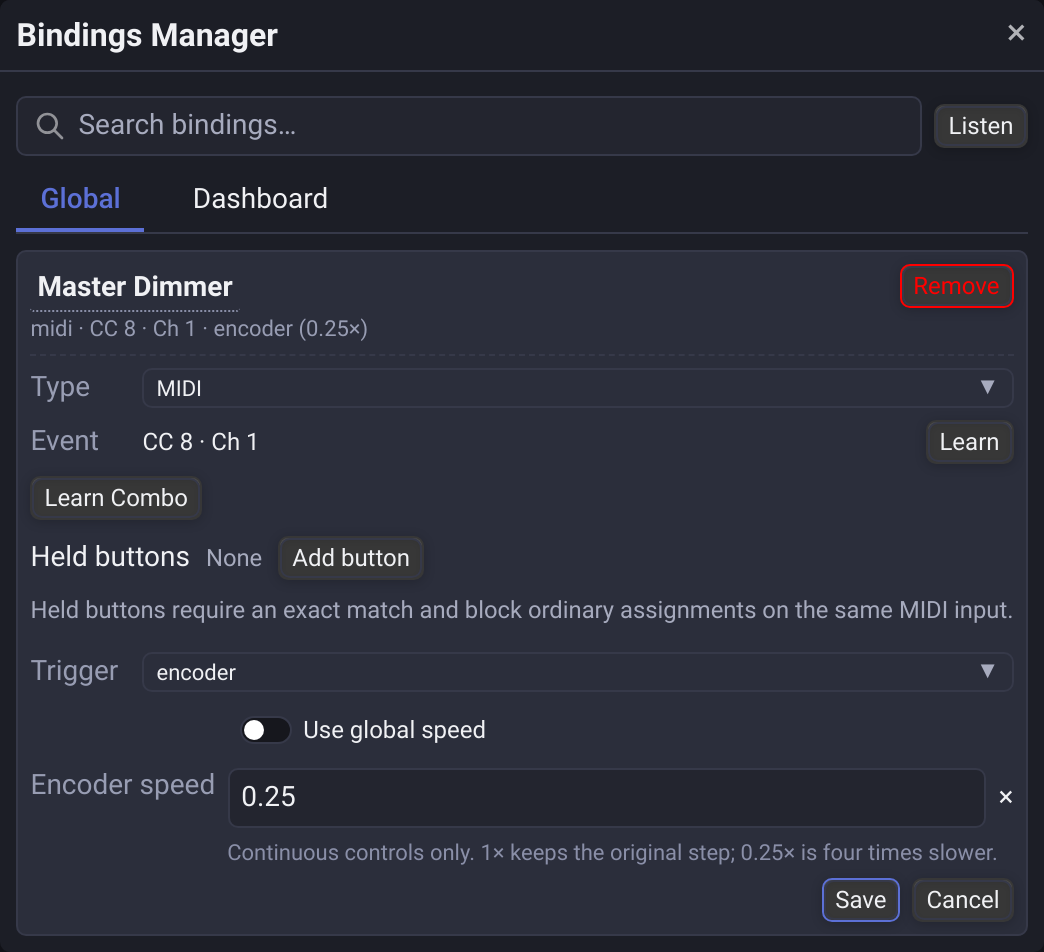
- Search & Filter: Search by label, source type, or target parameter. OSC rows show the address/pattern and argument; edit their mode and value in the manager.
- Listen Mode: Move a MIDI control, press a keyboard shortcut or operate a surface to jump to matching bindings.
- Scope Tabs: View Global bindings separately from Dashboard widget-level bindings.
- Project Portability: Dashboard widget assignments are saved with the project. Global assignments are stored in this application's settings.
- Encoder speed: Edit an existing Encoder binding's multiplier or restore Use global speed in either scope tab. The row summary shows its individual multiplier or
global.
Functions Widget Random and Shuffle
Use Assign Mode on Random or the enabled Shuffle button in a Functions Widget header. Each action has a separate widget-level mapping saved with the project.
- Random keeps its mapping across Buttons and Cue List views. In Buttons, it is available only in Exclusive and Hold modes.
- In Hold, use a MIDI event that supplies both press and release. Note Off and zero-velocity Note On release the selected random function. One-shot mappings cannot represent a physical hold.
- Shuffle is available only in Cue List after enabling Show Shuffle button in the widget settings. Turning that setting off also prevents an existing mapping from shuffling.
Shuffle changes the saved order without an undo command here. Read Cue List Random and Shuffle before enabling it for a show.
Combo button assignments
Combo Function buttons use the existing MIDI, OSC and keyboard assignment controls. Convert to Combo keeps the converted button's assignments and preserves assignments still needed by other buttons. Held sources release through the same input/disconnect handling. Deleting a function with linked-control cleanup off retains its assignments for repair.
For Combo buttons, keyboard, pointer, MIDI and OSC holds participate independently. Changing window focus releases keyboard and pointer input while connected MIDI and OSC holds continue. Each hardware release removes its own participation. Converting a held source while editing preserves its release path, including Note Off and MIDI disconnect; authoring still blocks new activations.