While digital consoles and tablet remotes streamline lighting control, physical paperwork remains indispensable during stage rigging, truss load-ins, and venue coordination. Electricians on ladders, riggers hanging lamps, and rental warehouse crews rely on clear, printed fixture schedules and patch sheets. Unilighter includes a dedicated, printer-optimized patch list export engine designed to generate clean, ink-friendly paperwork directly from your show patch.
🖨️ Configuring the Printout
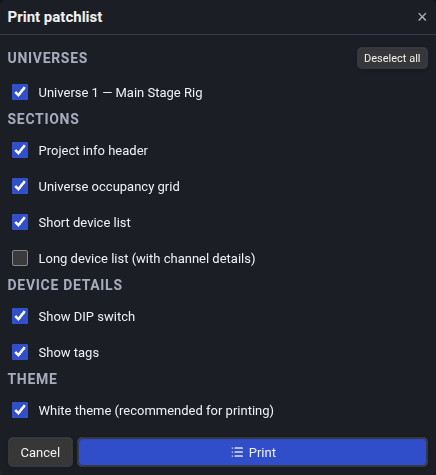
In the Device Patch view (/#/setup), click the Print icon in the patch list header to open the configuration modal:
1. Universe Selection
Select all universes or isolate a specific truss line or distribution box (e.g. Universe 1 — Main Stage Rig).
2. Printable Sections
- Project Info Header: Displays show title, venue details, total fixture count, and universe count.
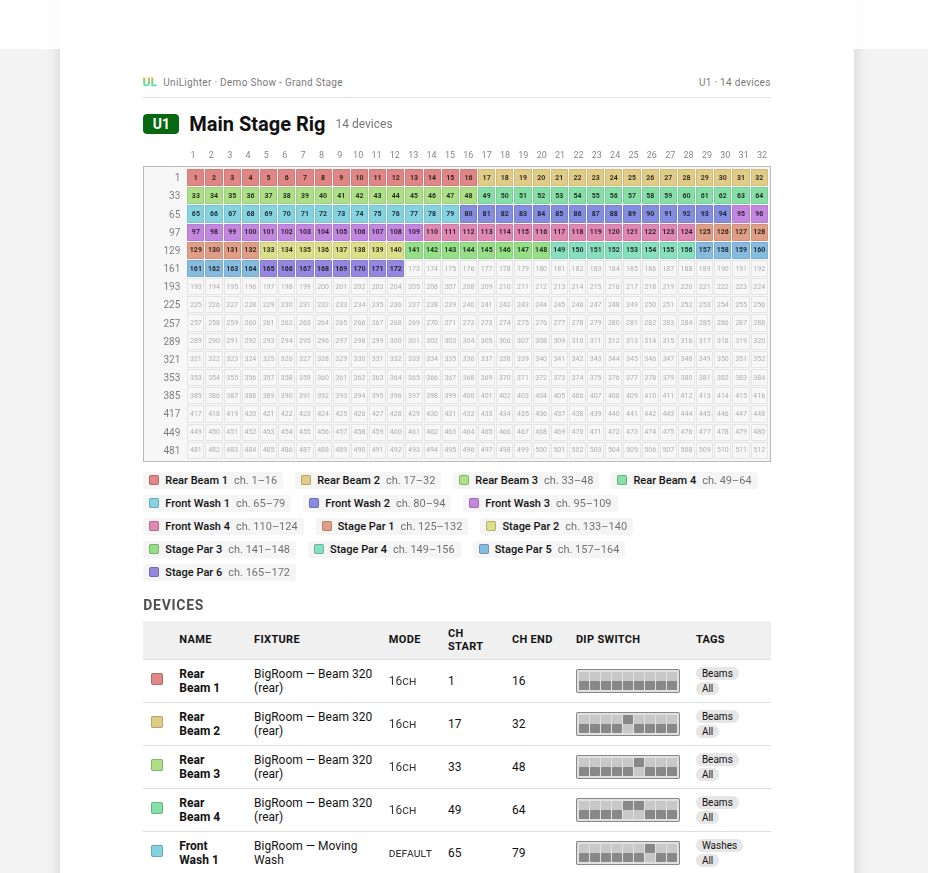
- Universe Occupancy Grid: A 512-channel visual matrix of the entire universe.
- Short Device List: Compact summary table showing Start and End channels, fixture mode, DIP switches, and semantic tags.
- Long Device List: Expanded technical view detailing individual channel offsets per fixture (Dimmer, Pan, Tilt, Strobe, Gobo, etc.).
3. Hardware Addressing Details
- Rendered DIP Switches: Automatically computes and renders accurate binary switch diagrams (8-switch or 10-switch blocks). This saves hours when addressing older stage pars, blinder bars, or architectural lights lacking digital numeric LED displays.
- Fixture Tags: Displays assigned grouping chips (
#Beams,#Washes,#FrontStage) so riggers understand physical stage placement and orientation.
4. High-Contrast White Theme
The White theme (recommended for printing) checkbox automatically swaps the console's dark UI for a clean black-on-white layout with high-contrast text and crisp grid borders. This avoids wasting expensive dark printer ink cartridges and guarantees legibility under dim clip lights backstage.
📊 Reading the 512-Channel Occupancy Grid
The occupancy grid organizes all 512 DMX channels into an intuitive 32-column matrix:
- Color-Coded Blocks: Each patched fixture is assigned a distinct color block spanning its exact footprint (e.g. Channels
1–16forRear Beam 1, Channels17–32forRear Beam 2). - Collision & Gap Detection: Technicians can spot unallocated channels, gaps between fixtures, or potential collisions at a glance before hanging fixtures.
- Device Legend: Located directly beneath the grid, matching each colored block to fixture names and channel spans.
📄 Exporting & Paper Handover
Clicking Print in the configuration modal triggers your browser's native print dialog (Ctrl + P / Cmd + P).
- Physical Paper Copies: Select your connected office or venue printer for distribution to rigging crews and electricians.
- PDF Export: Select Save as PDF to generate digital run sheets for venue management, stage managers, and rental house check-in sheets.
Read more in the Device Patch & Universe Setup Manual.