In live stage environments, complicated cue structures and procedural automation are useless if a physical cable fails or an unknown fixture needs immediate bench testing. The Simple Desk provides an unvarnished, direct 512-channel physical fader view per universe. It bypasses abstract fixture profiles, color calibration layers, timeline scenes, and node graphs to give technicians raw, direct command over every individual DMX byte.
🛠️ Practical Bench & Load-In Workflows
1. Line Testing & Fixture Addressing
When hanging fixtures on a truss before the show patch is finalized, walking down the rig and pushing faders tests physical lamp strike, shutter open, and pan/tilt travel without configuring profiles. If a moving head does not respond, pushing individual faders identifies whether the fixture is set to an unexpected DMX start address or an unpatched operating mode.
2. Isolating Glitches & Signal Noise
When a fixture flickers or twitches during a live rehearsal, Simple Desk isolates whether the issue is coming from show programming (such as overlapping node graphs, conflicting scenes, or priority locks) or physical line interference (a missing DMX terminator, a damaged RS-485 cable, or ground loops). A steady commanded value helps separate programming changes from physical output problems; it does not itself verify the cable or fixture.
3. Auxiliary Worklights & Atmospheric Control
Direct fader control is ideal for house worklights, stage blinders, or smoke and haze machines during load-in and teardown. Technicians can adjust haze levels or strike utility lamps without cluttering the main performance dashboard with temporary test buttons.
4. Reverse-Engineering Unknown Fixtures (Blind Discovery)
When working with unbranded generic LED pars, vintage club scanners, or rental moving heads where user manuals and DMX channel charts are missing:
- Set the mystery fixture's menu to start address
1. - Open Simple Desk and slowly raise faders
1,2,3... one at a time. - Watching how the physical light reacts reveals its channel mapping step by step: fader 1 might be Pan, fader 2 Tilt, fader 6 Dimmer, fader 7 Strobe, and faders 8–11 Red, Green, Blue, White.
- Once you establish the channel footprint empirically, you can jump straight into the Fixture Profile Editor to build an accurate custom fixture definition for your project library.
🎚️ Interface & Channel Controls
- Universe Selector: A dropdown selector at the top left lets you switch instantly between any active universe configured in your patch (
Universe 1,Universe 2, etc.). - Proportional Level Bars: Vertical faders with high-contrast glowing fill levels display the exact output value of each channel.
- Channel Anatomy:
- DMX Channel Number: Discrete channel index (
1through512). - Patched Attribute Label: If the channel belongs to a patched fixture, Unilighter displays the fixture name, attribute name, and channel offset (for example,
Rear Beam 1 pan (1)orRear Beam 1 dimmer (7)). Unpatched channels display clean numeric indicators. - Value Readout: Direct decimal value display (
0to255) at the base of every fader column.
- DMX Channel Number: Discrete channel index (
⚡ Priority Mechanics & Universe-Level Override
Simple Desk operates at the highest operational layer in the Unilighter signal stack:
- Immediate Universe Override: Holding or adjusting a fader on the Simple Desk establishes an immediate Universe-Level Manual Override. This supersedes background scenes (priority
0), layered animation chases (priority0–10), and live touch controls on the dashboard (priority100). - Persistent Test State: After a fader is adjusted, its manual value remains active, including zero, until released.
Read more in the Control Priorities & Signal Layering Guide.
Device grouping and all-channel actions
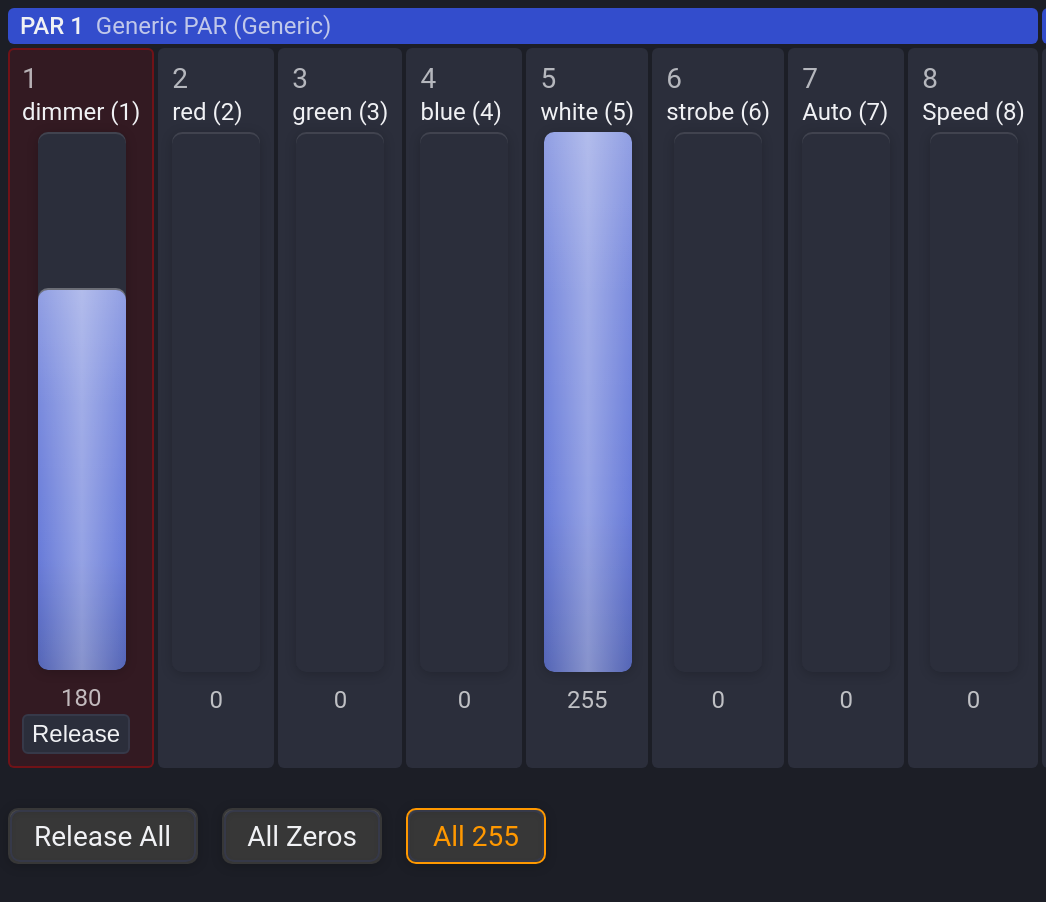
Channels are grouped under blocks for each patched fixture, showing its name, fixture and manufacturer. Each fader has a readable channel label, including named misc parameters. This is still raw channel control on the selected universe.
- All Zeros acquires manual control of all 512 channels at zero. It does not release them.
- All 255 acquires every channel at full output after a confirmation. The dialog warns that full values can trigger movement, strobe, reset or special modes.
- Release All releases manual overrides and lets scenes, animations, graphs or defaults control the output again.
Use per-channel release for individual overrides. For fixture discovery, Reverse Engineering provides a dedicated workspace with recorded slots, ranges and camera capture.