The Step Animation Editor is Unilighter's engine for creating sequential chases, rhythmic color pulses, alternating strobe bursts, and multi-scene step sequences. Unlike continuous keyframe timelines, Step Animations operate on discrete lighting states (steps) that hold for a defined duration or musical beat before crossfading to the next step.
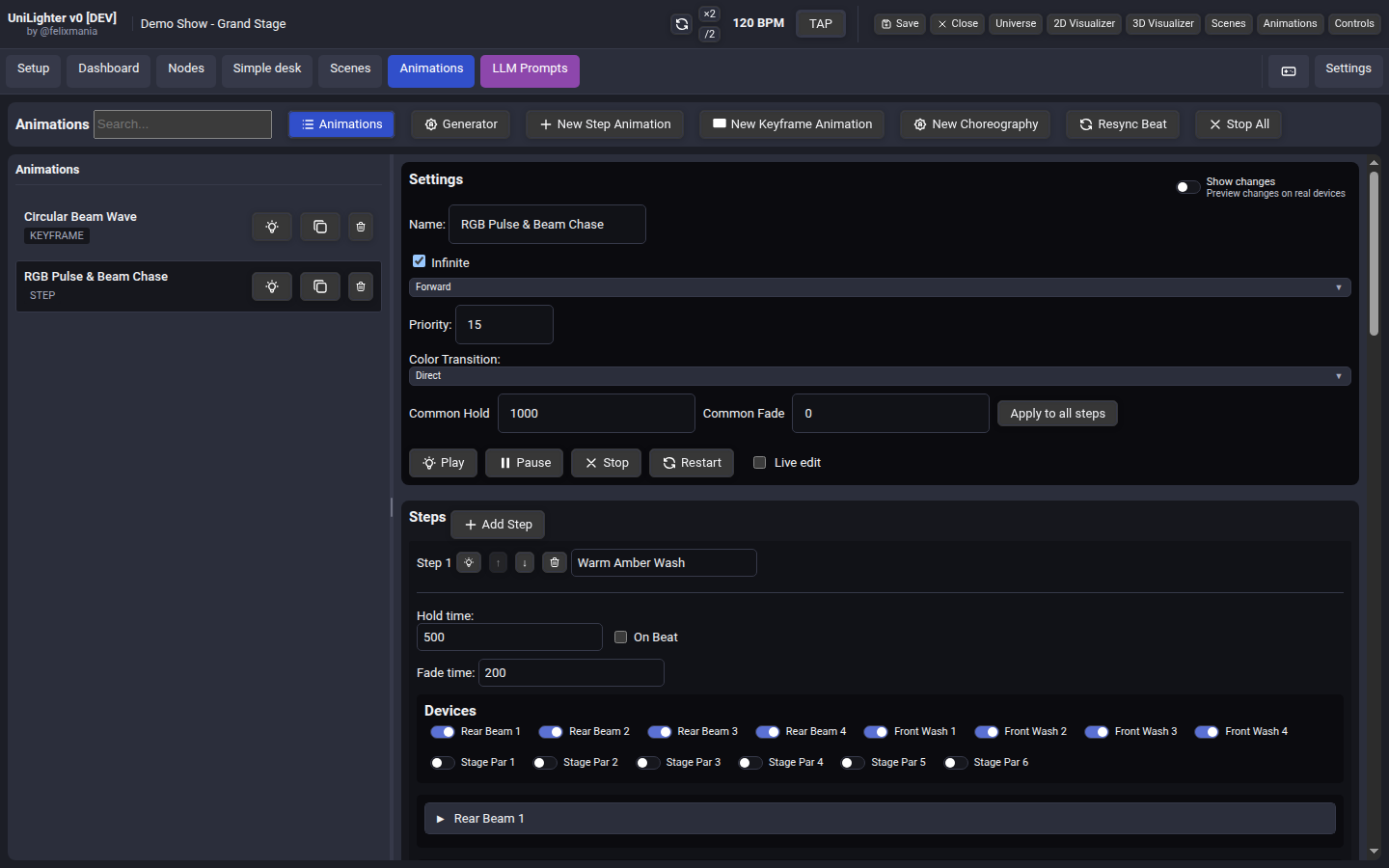
⚙️ Global Animation Settings
Each Step Animation features global properties that govern playback order, priority layering, and color blending:
1. Name & Control Priority
- Name: A descriptive title (e.g.,
Odd/Even Wash Chase,RGB Strobe Pulse). - Priority (
-100to100): Sets the animation's authority in the Unilighter Priority System. An animation set to priority15will seamlessly override static background scenes (Priority: 0), while allowing manual faders on the Live Dashboard (Priority: 100) to take precedence when touched.
2. Repeats & Infinite Playback
- Infinite Checkbox: When checked, the animation loops continuously until stopped or superseded by another cue.
- Repeats: If unchecked, define a precise number of cycles (e.g.,
3cycles for a brief strobe burst) before the animation automatically halts.
3. Playback Order
Choose how the engine iterates through your sequence of steps:
- Forward: Steps sequence strictly from start to finish (
1 → 2 → 3 → ... → N → 1). - Reverse: Steps run backward (
N → ... → 3 → 2 → 1 → N), ideal for reversing beam sweep directions. - Ping-Pong: Steps bounce back and forth smoothly (
1 → 2 → 3 → 2 → 1), creating natural pendulum or waving movements.
4. Color Transition Modes
When steps feature contrasting fixture colors, Unilighter provides four mathematical transition algorithms:
- Direct (Shortest Path): Straight-line RGB/CMY interpolation through vector color space. Fastest and most efficient for rapid color bumps.
- Hue (Linear HSV): Rotates around the perimeter of the HSV color wheel. Colors travel smoothly through adjacent spectral shades (e.g., Red to Green travels through Orange and Yellow).
- Via White: Interpolates color intensity through peak white saturation before reaching the destination hue. Produces a punchy, flash-style transition popular in electronic music sets.
- Via Black: Fades fixture dimmer down to complete blackout before bringing up the target color. Prevents muddy intermediate colors and creates classic theatrical cut transitions.
5. Bulk Timing Tools
- Common Hold (
ms): Global hold duration applied across all steps. - Common Fade (
ms): Global crossfade time applied across all steps. - Apply to all steps: Single-click button that stamps
Common HoldandCommon Fadeinto every step in the list, saving tedious manual typing.
6. Transport & Live Auditioning
- Transport Bar: Dedicated buttons for Play, Pause, Stop, and Restart.
- Live Edit: When checked, any adjustments made to step parameters or fixture sliders immediately stream to physical DMX outputs, letting you dial in positions and colors live on stage.
- Show Changes: Toggle real-time hardware preview without altering the main stage playback state.
🪜 Managing Animation Steps
The lower half of the editor contains the step sequence:
Adding & Reordering Steps
- Add Step: Appends a new step to the end of the sequence.
- Reorder (
↑/↓): Move steps earlier or later in the chase. - Preview Step (
Lighticon): Solo-audition a specific step on stage fixtures without running the entire animation loop. - Step Name: Assign custom labels (e.g.,
All Odd On,Even Blinders,Strobe Drop). - Delete (
Trashicon): Remove redundant steps.
Step Timing Parameters
Each step contains independent timing controls:
- Hold Time (
ms): The duration the step remains static after fading in. - On Beat Checkbox: When checked, hold time automatically locks to 1 musical beat (
0 mshold offset) synchronized with the master BPM clock. As tempo changes during a live performance, the chase automatically speeds up or slows down in perfect lockstep. - Fade Time (
ms): The crossfade transition time taken to morph from the previous step's values into this step. Set to0for instantaneous snap cuts (strobe/blinder chases), or higher values (200ms - 2000ms) for gentle ambient morphing.
Embedded Scene Editor
Clicking any step opens an embedded Scene Editor. Use Search devices or tags… to narrow its target choices without changing the step. It contains:
- Device Selector Chips: Enable or disable specific fixtures (
Rear Beam 1,Stage Wash 2,Stage Par 3) in this step. - Parameter Controls: Adjust Dimmer faders, RGB/CMY color wheels, Pan/Tilt position crosshairs, and indexed gobo/prism wheels.
- Selective Overrides: Only active channels within a step are sent to DMX. Untouched channels pass through signals from lower-priority layers.
🪄 Rapid Creation with Animation Generator
Instead of programming steps by hand, use the built-in Generator tab:

- Select Devices: Search by fixture name, ID or channel, then click fixtures from the list to include them in the chase. Searching does not change the selected fixtures or their order.
- Order Devices: Arrange physical left-to-right, center-out, or circular ordering using the
↑,↓, and remove buttons. - Select Preset:
- Odd / Even: Creates an alternating 2-step chase where odd-numbered fixtures illuminate in Step 1 and even-numbered fixtures illuminate in Step 2.
- One by One: Creates an \(N\)-step sequence illuminating exactly one fixture at a time in sequence across the array.
- Fill: Sequentially accumulates fixtures step-by-step until all heads are illuminated, then snaps off and repeats.
- Hold & Fade Times: Specify default hold time (or enter
0for beat-synchronized playback) and fade time. - Generate Animation: Click the button to automatically bake all steps and scenes into a new Step Animation ready for playback.
🎛️ Live Performance Integration
Once saved, Step Animations can be triggered seamlessly:
- Function Widget on Dashboard: Map the animation to a touch button for instant cue firing.
- Resync Beat: Click Resync Beat in the console header at any time to instantly phase-align running chases to the DJ's downbeat.