Desktop Update Management & Rollback
In live stage lighting, touring productions, and theatrical performances, stability is paramount. An unexpected software change or automatic reload right before doors open is every lighting technician's worst nightmare.
Unilighter Desktop features a dedicated Update Management & Rollback system designed specifically for the realities of live production. It gives you full authority over when updates are installed, keeps multiple previous versions ready for instant offline rollback, and includes a separate Emergency Recovery Page (!!Ctrl+Shift+E!!) that functions even if the console interface freezes. Opening this non-modal window keeps your console and lighting output running.
🔒 Why Update Management Matters for Live Shows
1. The "Show Freeze" Rule
During a tour, festival weekend, or theatrical run, professional lighting directors practice a strict Show Freeze:
- Once a lighting show is programmed, rehearsed, and approved during tech week, the console software must remain locked.
- Unilighter Desktop lets you disable automatic background installation with a single toggle. The console will never reload itself or update without your explicit permission.
2. Zero-Risk Rehearsal Upgrades
When new features or fixture profiles (such as Washers, Pars, or moving heads) are released:
- You can safely update during pre-production or soundcheck.
- If an unforeseen change affects your workflow or a fixture profile behaves unexpectedly, you can switch back to a previously cached working version with a single click.
3. Full Offline Resilience
- Venues located in underground clubs, arena tunnels, or outdoor fields often lack reliable internet.
- Unilighter stores previously downloaded versions directly on your computer's local drive. You can switch between stored versions completely offline without needing an internet connection.
📦 How Version Storage Works
Unilighter Desktop manages versions locally so you are always protected:
- Retains the Last 5 Versions: The application automatically stores up to 5 recent versions locally on your hard drive.
- Offline Switching: All cached versions are complete, self-contained packages. You can activate any of the 5 saved versions at any time, even in airplane mode.
- Disk Storage Management: The app efficiently reuses unchanged assets between versions. If you ever wish to free up drive space, you can delete older cached builds individually with one click.
⚙️ Configuring Update Behavior
You can choose how Unilighter Desktop handles new releases via Settings \(\rightarrow\) Desktop:
Mode A: Automatic Background Preparation (Default)
- Setting: Automatically install console updates is checked.
- Behavior: Unilighter quietly checks for updates in the background (approximately every 30 minutes). When an update is ready, it downloads the assets silently in the background without affecting your active DMX output or fader response.
- Notification: A discrete toast notification appears in the lower-right corner of the screen:
System updated — [Reload] [What's new]
- Release Notes: What's new opens the public changelog in your system browser.
- Your Choice: The app never reloads automatically. You decide when to click Reload (such as between sets, during intermission, or after the show).
Mode B: Manual Update Mode (Show Freeze)
- Setting: Automatically install console updates is unchecked.
- Behavior: Unilighter checks if a new version exists, but does not download it automatically.
- Notification: When an update is detected, a toast notification informs you:
An update is available — [Install and reload]
- Your Choice: No data is downloaded and no files are touched until you choose to click the button.
If a project is open when you apply an update, the console asks whether to save first, update without saving, or cancel. Unsaved project changes will be lost when the console reloads.
Tip
Touring Best Practice: Uncheck Automatically install console updates on your primary show laptop before leaving for a gig. Keep it frozen throughout the tour, and perform updates only during scheduled rehearsal days.
🚨 The Emergency Recovery Page (!!Ctrl+Shift+E!! / !!⌘⇧E!!)
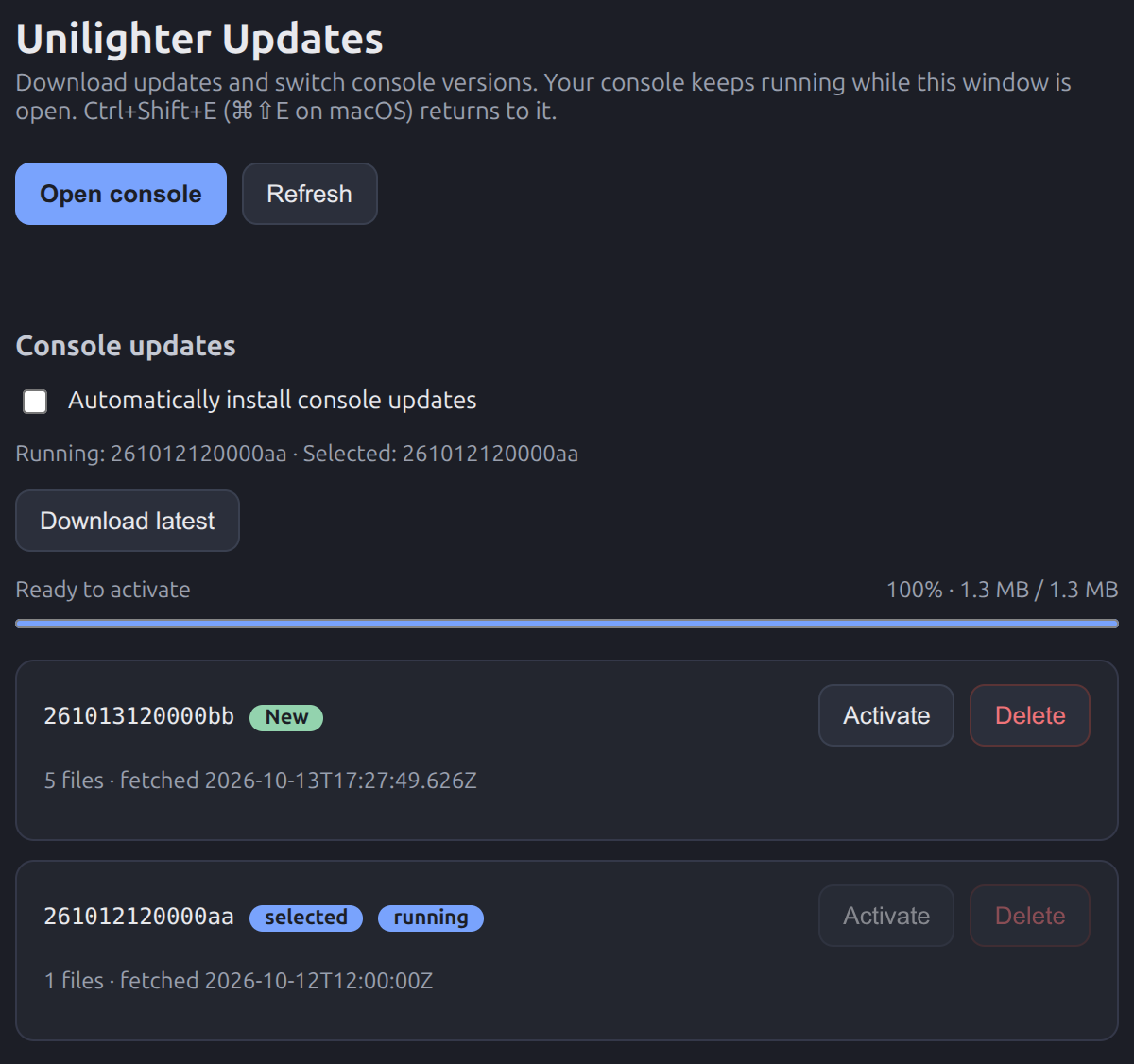
The Emergency Page is your safety net. It is an independent update-manager window built directly into Unilighter Desktop. Your console stays open behind it; opening the window does not unload the project or stop lighting output.
Why It Is Unique: Total UI Independence
Standard web applications fail completely if a script error occurs or a corrupt file causes a blank screen.
- The Emergency Page does not depend on the main console application.
- Even if the console screen freezes, turns white, or fails to render, the Emergency Page always opens.
How to Access the Emergency Page
- Global Keyboard Shortcut: Press
!!Ctrl+Shift+E!!(Windows & Linux) or!!⌘⇧E!!(macOS) from anywhere in the application. - From App Settings: Go to Settings \(\rightarrow\) Desktop and click Open update manager.
- Quick Return: Press
!!Ctrl+Shift+E!!(or!!⌘⇧E!!) inside the manager, click Open console, or close the window to return to the console without reloading it. A running download continues after the window closes.
🛠️ What You Can Do on the Emergency Page
1. Instant 1-Click Rollback
The page displays a list of all cached versions stored on your machine.
- Each version card displays its identifier, total file count, and download date.
- The build in use has a running badge. selected identifies the version selected for the next console load. A newly downloaded version has a New badge until it is activated or the app exits.
- To switch or roll back, click Activate next to a cached build. With an open project, the warning says that unsaved changes will be lost. Choose Save and update, Update without saving, or Cancel. Older console versions without save support and read-only projects show the same warning with only Update without saving and Cancel.
- Save and update waits for local saving to finish. If saving fails, the current console stays open and the manager shows the error. After confirmation, the console immediately reloads into the chosen version. Cancel leaves it running.
2. Manual Update Download
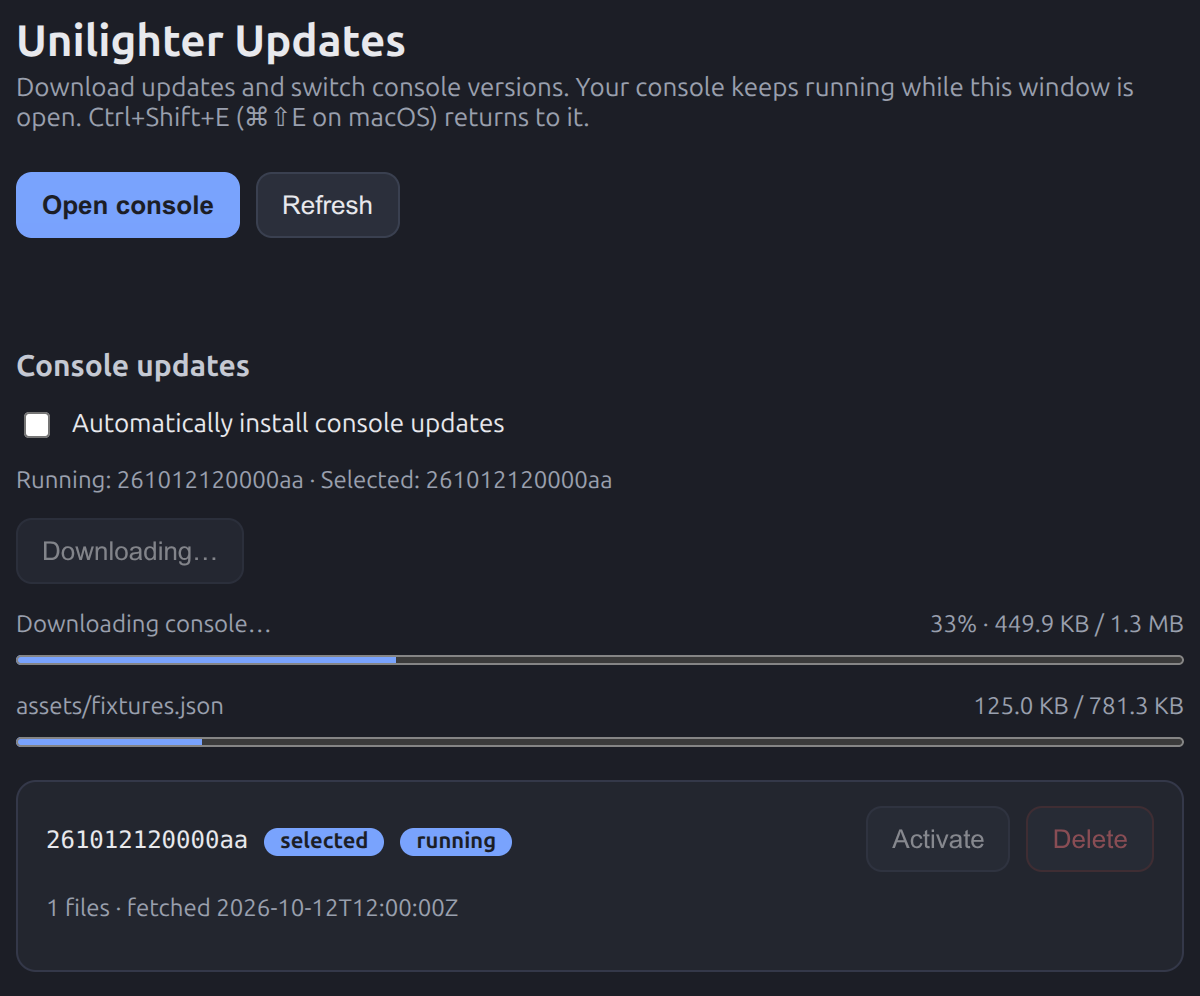
- If you have an internet connection and want to fetch the latest release, click Download latest.
- The first progress bar covers the manifest and all files that need downloading. It is indeterminate while the manifest is being read, then shows the overall percentage and byte counts. The second bar shows the largest file currently being downloaded and disappears when no file is being transferred.
- Keep using your console, close the manager, or click Open console at any point. Reopening the manager restores the current progress.
- After download and verification, the build appears in the list with a New badge and Activate. Downloading alone does not select or reload it.
- If downloading fails, choose Retry download. Files already verified in the cache are reused.
3. Toggle Auto-Update Preferences
- Check or uncheck Automatically install console updates directly from this screen.
- This allows you to lock your console even if you cannot access the main settings screen.
4. Delete Unused Versions
- Click Delete next to any inactive version to remove it from your local storage and free up disk space.
- The active version cannot be deleted while in use.
📋 Operator Playbook: Common Scenarios
Scenario 1: Pre-Tour "Show Freeze" Checklist
- Open Settings (
⚙️) \(\rightarrow\) Desktop. - Uncheck Automatically install console updates.
- Press
!!Ctrl+Shift+E!!to open the Emergency Page. - Verify that your current stable version is marked as running, and confirm that at least one known-good previous version is listed below it.
- Press
!!Ctrl+Shift+E!!to return to your workspace. Your system is now frozen and ready for the road.
Scenario 2: Emergency Rollback During Tech Rehearsal
- Suppose an update was applied and you encounter an unexpected issue with a fixture profile (e.g. Washers or Pars).
- Press
!!Ctrl+Shift+E!!immediately. - Locate the previous version in the list and click Activate.
- Choose Save and update to preserve the open project, or Update without saving if you accept losing unsaved changes. The console reloads into the previous version after confirmation.