Fader Control
The Fader is the foundational linear input component in Unilighter. It is used across the entire console for fixture Dimmer levels, Strobe rates, Master playback intensity, procedural Node Graph multipliers, and crossfading.
Designed specifically for dark live environments, the fader features high-contrast liquid fill graphics, glow accents, and responsive real-time physics.
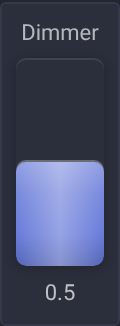
📐 Layout & Visual Variants
Unilighter adapts the fader's layout and behavior to match the specific lighting parameter:
1. Standard Vertical Dimmer
Used in Device Control and Simple Desk. Features a continuous 0.0 to 1.0 (or 0–255 DMX) vertical track with real-time numeric readout at the bottom.
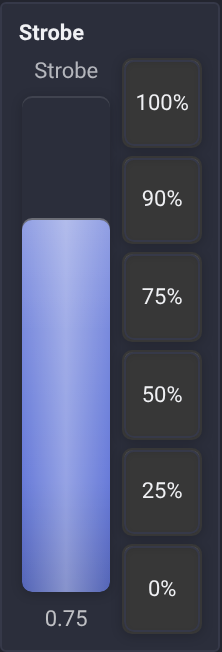
2. Strobe Fader with Quick-Jump Buttons
When controlling fixture Strobe channels, the fader is flanked by 6 dedicated percentage jump buttons (100%, 90%, 75%, 50%, 25%, 0%).
Tip
Strobe Button Behaviors:
- Click & Hold: Pressing a percentage button applies the value immediately on mouse-down or touch-down, without waiting for a click. It temporarily overrides the strobe for as long as you hold the mouse/touch. Releasing the pointer immediately springs back to the previous value. Perfect for quick strobe flashes during musical drops!
Shift+ Click: Permanently locks (latches) the fader to the clicked percentage.
3. Horizontal Fader
Used for Pan trim adjustments, Crossfaders between scenes, and compact node parameters.

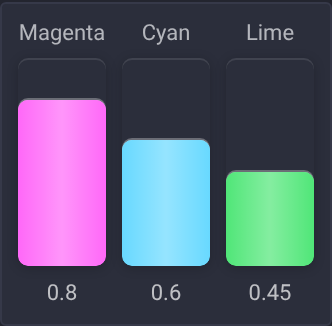
4. Custom Color Accents & Statuses
Faders can be color-coded to visually match fixture color groups or specific universe buses:
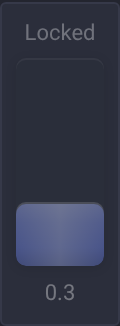
When a channel is locked or disabled, it displays a dimmed frosted state:
🕹️ Interaction Techniques & Modifiers
| Action | Shortcut / Gesture | Result |
|---|---|---|
| Direct Drag | Click and drag track | Adjusts value smoothly at normal speed |
| Track Jump | Single click on track | Instantly sets level to clicked position |
| Minimum / Maximum | Click near either end of the track | Sets the exact minimum or maximum; the end area is subtly outlined on hover |
| Fast Coarse Adjust | Ctrl + Drag |
2× speed for rapid blackout or full flash |
| Surgical Micro-Tuning | Shift + Drag |
10× precision for delicate theater dimmer fades |
| Mouse Wheel Scroll | Hover + Ctrl + Scroll Wheel |
Smooth increments without clicking |
| Wheel Fine Adjust | Shift + Ctrl + Wheel |
Micro-step scroll adjustment |
| Direct Numeric Entry | Click numeric label | Type a value in the control’s working units; confirm with Enter or by leaving the field |
Typing does not move the fader until you confirm. You can clear the field, leave a trailing decimal separator and finish the replacement normally. Up and Down immediately apply one configured step from your draft, even before Enter. Escape discards only unconfirmed typing. Opening and leaving a rounded readout without editing it preserves the stored precision. See Numeric entry.
🎮 Hardware MIDI & Keyboard Mapping
Every fader in Unilighter can be bound to physical MIDI faders, hardware control surfaces, or keyboard hotkeys.

To map a hardware fader:
- Click the Assign Mode button in the top navigation bar.
- Click the desired fader on the screen.
- Move your physical MIDI fader or press a keyboard key to capture the binding.
Note
Motor faders and LED rings: Moving a physical fader updates the virtual fader, and the fader's position is sent back to the controller: motor faders and LED rings follow changes made on screen, by cues or by another controller. Faders without motors cannot show the position and take control as soon as they move. See Controller feedback.
- Read the complete guide in Assign Mode & Controller Mapping.
Named ranges and release
Fixture channel ranges are marked in the control color, and the fader shows the active range name. Analog direction can be reversed by the profile. Release returns to the next controlling source or precise DMX default rather than acquiring a new zero value. Touch dragging operates independently of other controls. Mouse dragging ends on release, lost pointer capture or window focus loss, preventing an old fader gesture from following the cursor.