The Audio Input Node (AudioNode) captures live audio and publishes a real-time Fast Fourier Transform (FFT) stream for reactive lighting.
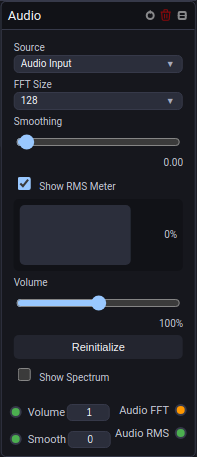
⚙️ Configuration Parameters & Controls
- Source: Choose Microphone for a selected system input or Screen Audio to capture audio offered by a screen-share source. The Audio Input option is reserved for host-specific input handling.
- Input Device: When Microphone is selected, choose the available audio input device or Default Device.
- FFT Size: Choose
128,256,512,1024,2048,4096, or8192. Larger sizes provide finer frequency resolution; smaller sizes react with a shorter analysis window. - Smoothing: Applies temporal smoothing from
0.00to0.99. Lower values preserve fast transients, while higher values make the displayed spectrum and downstream response steadier. - Volume: Applies an analysis gain from
0%to200%before the signal is used by downstream nodes. - RMS Meter: Shows the current overall signal level as a percentage when enabled.
- Spectrum: Shows the live spectrum with a logarithmic frequency axis, readable frequency labels from
20 Hzto20 kHz, and level guides from-20 dBto-100 dB. - Reinitialize: Reopens the audio context after a browser permission change or a suspended audio session.
🔌 Socket Outputs Reference
| Output Socket | Data Type | Description |
|---|---|---|
| Audio FFT | Audio |
Raw FFT data together with the sample rate and FFT size. Connect this to a Frequency Meter Node or BPM Node. |
| Audio RMS | Number |
Overall root-mean-square level of the incoming audio signal. |
The Audio Input Node does not provide separate Bass, Mid, or Treble sockets. Use a Frequency Meter Node when you need a selected band or a bank of fixed bands.
💡 Practical Stage Recipes
- Bass Kick Strobe Pulse: Connect Audio FFT to a Frequency Meter, select Parametric mode, set a kick-drum range such as
40–100 Hz, and route RMS through a Gate Node to a strobe parameter. - Beat-Synchronized Effects: Connect Audio FFT to the BPM Node. Use Frequency for an oscillator, Clock for musical pulses, or Transient for detected audio attacks. Enable Control tempo on that node to gradually synchronize the master tempo and phase to the captured audio. Its Response knob chooses between cautious locking and early provisional tempo following; the default is Careful.
- Smooth Ambient Response: Connect Audio RMS through a Gate Node or Math node and map the result to the dimmer of a wash tag.
Tempo analysis
When a connected BPM node requests live analysis, Audio Input starts a shared background audio analyzer with sample-based timestamps. Its fixed 2048-sample window and 256-sample hop are independent of the graph frame rate and the FFT Size, Smoothing and Volume settings used by the existing spectrum/RMS outputs. Set the tempo detector's frequency band and sensitivity on the BPM node.
The analyzer stops when its last consumer disconnects or stops processing, or when the Audio Input node is disabled. Restarting a graph does not reactivate a disabled Audio Input. A source change or audio interruption requires fresh tempo acquisition. Hosts without working background audio analysis can still provide spectrum/RMS and diagnostic tempo estimates, but cannot automatically synchronize master tempo and phase. See the BPM Node guide for tracking states and limitations.