LAN Remote Control & Mobile Dashboard
Unilighter Desktop includes a built-in, local Client-Server Remote Control engine. It transforms any smartphone, tablet, or secondary laptop on your venue's local Wi-Fi into an untethered, tactile lighting controller—with zero cloud lag and without requiring an active internet connection.
Whether you are walking the stage to focus moving heads, fine-tuning audience blinders from the back of the auditorium, or handing a stage manager a tablet for worklight cues, remote control keeps you in full command from anywhere in the venue.
⚡ Architecture: Desktop LAN Host vs. Browser WebRTC
Unilighter offers two different ways to connect remote mobile devices, depending on whether you run the native desktop workstation or the web browser console:
| Feature | Browser Console (WebRTC) | Unilighter Desktop (LAN Host) |
|---|---|---|
| Architecture | Peer-to-Peer WebRTC DataChannels | Dedicated Client-Server (HTTP & WebSocket) |
| Internet Requirement | Requires internet initially to load both apps & exchange SDP | 100% Offline (operates entirely on local Wi-Fi) |
| Connection Method | Manual SDP offer/answer or signaling | Instant QR Code Scan or direct local IP link |
| Device Approval | Pre-shared connection offer | 4-Digit PIN Confirmation on operator screen |
| Device Memory | Session-based | Permanent Device Authorization (reconnects instantly) |
| Network Footprint | External STUN/TURN traffic | 100% Local Traffic (never leaves the venue router) |
Note
Browser Console Remote: The web browser edition at console.unilighter.cc still supports WebRTC remote control, but setup is more complex and both devices must have internet access to initiate the session. Unilighter Desktop provides the true, offline client-server experience.
Dashboard access and Surface sharing
The steps below authorize the Remote Dashboard. A Control Surface has a separate workflow: open Dashboard → Surfaces, choose a surface, then use Share → Publish Surface. Scan its QR code or use Copy Link. Guests join without an account, PIN or approval and receive only that surface.
Both use the same local server, with independent permissions. Enable remote control in Settings grants Dashboard access; publishing a surface does not enable that permission. Disabling Dashboard access leaves published surfaces available. The server stops only when neither capability needs it.
Surface links persist across closing/reopening projects and restarting Unilighter Desktop. Pause access and Resume access keep the link; Revoke link invalidates it. A closed/different project or unready Dashboard puts guests into waiting; the correct project resumes control once its Dashboard targets are ready. Waiting commands are discarded.
Keep these links private. They remain local to this workstation and are not included in exported projects; project/surface copies do not inherit sharing, and deleting a surface revokes its link. If the local address or port changes, distribute the updated URL. See Surface sharing and recovery, including release behavior after connection loss.
🚀 Quick Start: Setting Up Remote Dashboard
Connecting a phone or tablet to Unilighter Desktop takes less than 30 seconds:
Step 1: Enable the Server in Desktop Settings
- Open the console navigation menu and navigate to Settings (
⚙️). - Scroll to the Remote control section.
- Click Enable remote control.
- The server starts immediately and displays:
- Server status: Shows Dashboard access enabled. If only surfaces are shared, it shows Dashboard access disabled · Surfaces server running.
- Network address: Dropdown showing your computer's local IP address and port (e.g.
http://192.168.1.100:3848). - Live QR Code: A scannable code generated directly on your screen.
Step 2: Scan the QR Code on Mobile
- Connect your smartphone or tablet to the same local Wi-Fi network as your lighting computer.
- Open the camera or QR scanner on your mobile device and scan the QR code.
- Tap the link to open the remote interface in Safari, Chrome, or Firefox.
- (Alternative): Type the displayed network address directly into your mobile browser's address bar.
Step 3: Approve the Connection via PIN Code
To prevent unauthorized guests or audience members on the venue Wi-Fi from tampering with your lighting:
- When your phone opens the page, it displays a 4-digit confirmation code (e.g.
4812). - An interactive notification card (Remote access request) appears in the top-right corner of Unilighter Desktop:
- Shows the device name (e.g. Phone), local IP address, and the confirmation code.
- Compare the PIN code with the code on your phone, then click Allow in the desktop console.
- Your mobile screen unlocks immediately and displays the live dashboard controls!
Tip
Device Memory: Once you approve a device, Unilighter Desktop remembers it via a secure local session cookie. When you reconnect the same phone later during soundcheck or showtime, it connects instantly without prompting for confirmation again.
🔒 Security & Device Authorization
Unilighter Desktop implements robust operator safety boundaries:
- 2-Minute Request Expiry: Unapproved pairing requests automatically expire after 2 minutes.
- Allowed Browsers List: In Settings \(\rightarrow\) Remote control, you can view all authorized devices under Allowed browsers, including their device name, IP address, and real-time status (Connected or Offline).
- Revoke Access in 1 Click: Click Revoke access next to any device in the list to immediately disconnect that device and delete its authorization token.
- Dashboard Scope: Authorized Dashboard devices receive dashboard widgets; Surface-link guests receive only their selected surface. Remote browsers have zero access to your operating system, show files, software updates, or terminal commands.
🛡️ Port Configuration & Firewall Troubleshooting
The remote control server uses TCP port 3848 by default.
Changing the Port
If port 3848 is already used by another service on your workstation:
- Click Disable remote control in Settings.
- Enter a new port number in the Port field (between
1and65535). - Click Enable remote control to restart on the new port.
Published surfaces also keep the shared server running. Pause or revoke their publications if you need to stop guest access during maintenance. After changing the port, copy updated Surface URLs from Share; previously distributed URLs still point to the old port.
Firewall Troubleshooting
If your mobile browser shows "Could not reach Desktop", "Connection lost", or times out when scanning the QR code:
- Verify Same Wi-Fi Network: Ensure both your desktop computer and your mobile device are connected to the exact same router/subnet. (Guest Wi-Fi networks often isolate client devices from communicating with each other).
- Allow Port in Firewall: Your computer's operating system firewall may be blocking incoming connections on port
3848:- Windows: Open Windows Defender Firewall with Advanced Security \(\rightarrow\) Inbound Rules \(\rightarrow\) Add New Rule \(\rightarrow\) Port \(\rightarrow\) TCP 3848 \(\rightarrow\) Allow the connection.
- macOS: Open System Settings \(\rightarrow\) Network \(\rightarrow\) Firewall \(\rightarrow\) Ensure Unilighter Desktop is allowed to receive incoming connections.
- Linux: Run
sudo ufw allow 3848/tcpin your terminal.
🎛️ Capabilities on the Remote Dashboard
The mobile remote interface is built specifically for responsive touch gestures:
- Device Control Widgets: Full tactile touch control over multi-parameter faders, high-contrast RGB/RGBW color pickers, dimmer masters, and 2D Pan/Tilt XY pads for moving heads.
- Node Graph Macro Widgets: Twist macro rotary dials and toggle procedural generator switches wired directly into your node graphs.
- Ultra-Fast 50ms State Synchronization: Parameter updates are coalesced and broadcast at 50ms intervals, ensuring butter-smooth visual feedback without flooding local Wi-Fi bandwidth.
- Multi-Operator Support: Multiple technicians can connect separate phones or tablets simultaneously. All connected devices share authoritative state in real time.
- Project Switch Safety: If the desktop operator switches to another project or closes the workspace, remote screens update immediately without phantom commands or stuck cues.
Functions Widget Random and Shuffle
The remote Functions Widget exposes the same actions as the host Dashboard:
- Exclusive Buttons: Random selects another inactive function and releases the other functions in that widget.
- Hold Buttons: Hold Random to run a random function until release. Other active functions stay on. Releasing, cancelling a touch, leaving the remote page, or disconnecting releases the held function; if several controllers hold Random together, it stays on until the last one releases.
- Cue List: Random changes the selected function without changing order. Shuffle appears only when Show Shuffle button is enabled in the host widget settings. Both preserve On / Off.
- Toggle Buttons and Scenario do not expose Random. Shuffle is exclusive to Cue List.
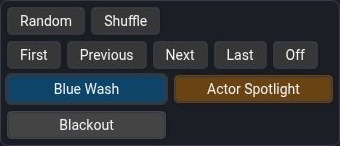
The host performs random selection and shuffling, then synchronizes the result to connected remotes. Shuffle changes the saved project order and selects the first shuffled cue; it has no undo command here. Use it only for lists where order is unimportant. See Function Widget and Cue Lists.
Combo Functions
Remote Function Widgets can trigger Combo Functions created on the host. Their names and logical active indicators follow the host. Disconnect releases remote holds; independent lighting and other holding sources continue.