Send a Project Copy
Send a saved show to another registered Unilighter operator by email. The recipient receives an independent project copy and any missing fixture profiles. Your original project and profiles stay in your account.
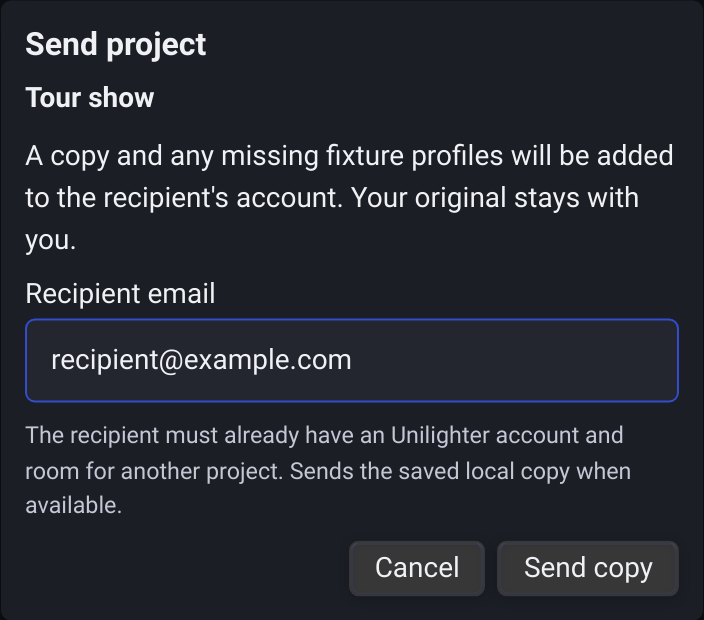
Sending a show
- Sign in and open the project you want to send.
- Save your changes, then open Settings → Project → Project sharing and click Send project copy.
- Enter the email address used for the recipient's Unilighter account.
- Click Send copy and wait for confirmation.
The saved local project is sent when available; otherwise, the cloud project is used. Unsaved edits are not included; a new project must be saved before sending. Required cloud-only fixture profiles are downloaded automatically before sending. The recipient refreshes their project list, then opens or downloads the new cloud project through the usual workflow.
To check the account address, open Settings → General → Account. The email text can be selected and copied.
Fixture profiles
Only profiles used by patched devices are included. An identical profile already in the recipient's cloud library is reused. A profile with the same name but different settings is kept separate; existing profiles are never overwritten. Unmodified built-in profiles remain built-in. Customized built-in profiles are included with the show.
If the recipient has customized the same built-in profile in their cloud library, your show's default profile is copied separately so their customization does not change your show.
Device IDs, fixture modes, patch addresses, scenes, animations, node graphs, Dashboard widgets, Surfaces, and other saved show settings are retained. The project and newly copied profiles receive independent library IDs.
Requirements and errors
- Sending requires an internet connection and a signed-in account. It is unavailable in Unilighter Solo or while inspecting another account.
- The recipient must already be registered. An unknown email displays an error; no invitation is created.
- The recipient must have room for another project under their current plan. Sending never replaces an existing project.
- Locked cloud projects cannot be sent. Missing required profiles or fixture modes stop the transfer.
- This action adds a copy to the recipient's account; it does not send an email message or provide ongoing synchronization.
Return to the Screens Guide for the rest of the console workflow.