Live concert touring and DJ performances are fundamentally non-linear: operators busk on the fly using faders, flash pads, and audio-reactive macros. In contrast, theatrical drama, opera, musicals, and corporate keynotes demand a strictly structured, reproducible sequence. Every lighting shift is anchored to a specific line of dialogue, an actor's entrance, or an offstage audio effect.
Unilighter accommodates both paradigms. Within the Functions Widget, operators can switch between freeform button grids, traditional sequential Cue Lists, and an industry-first Theatrical Scenario Script Mode.
🎭 The Three Operating Modes of Functions Widget
When editing a Functions Widget on the Live Dashboard, open widget settings and choose a View radio button:
| Mode | Target Workflow | Primary Controls |
|---|---|---|
buttons |
Live concert busking, festivals, DJ sets | Grid of momentary or toggle buttons for scenes, chases, and node graphs. |
cue-list |
Theatrical drama, dance performances | Numbered cue stacks with First / Prev / Next / Last, On / Off, and per-scene transitions. |
scenario |
Screenplay reading, drama rehearsals, timed shows | Full rich-text script view with inline cue badges and built-in stopwatch. |
📜 Theatrical Scenario Script Mode
In traditional theater booths, the lighting operator must juggle a paper script binder on their lap while keeping their fingers on the console's Go button. If the cast skips a line or jumps ahead during a live rehearsal, synchronizing the cue stack becomes stressful.
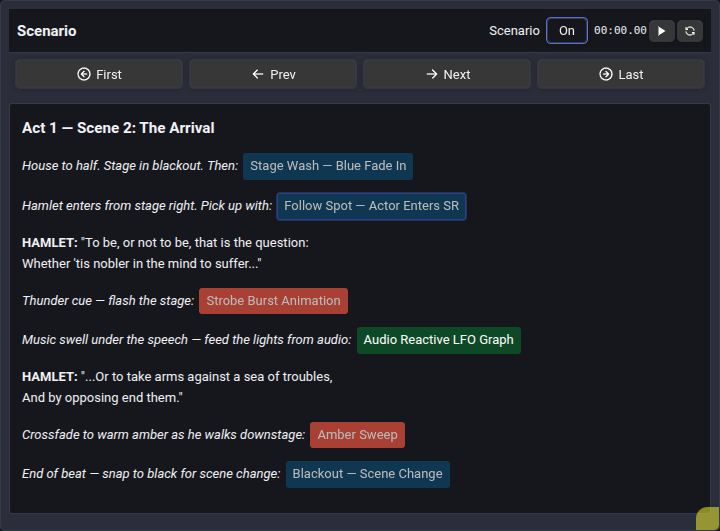
Scenario Script Mode solves this by embedding the play's screenplay directly into the digital control console:
1. Rich Text Play Script
Lighting designers or stage managers can paste the complete screenplay (dialogue, act/scene headings, character names, and italicized stage directions) directly into the widget editor.
2. Inline Interactive Cue Badges (<function>)
Lighting states are embedded directly inside the dialogue as clickable badges:
- Scene Badges (blue): Static looks such as Stage Wash — Blue Fade In or Blackout.
- Animation Badges (red): Dynamic movement such as Strobe Burst Animation or Amber Sweep.
- Node Graph Badges (green): Procedural sound-to-light or wave automation such as Audio Reactive LFO Graph.
Clicking any inline badge immediately fires that cue, allowing operators to trigger changes intuitively right as the actor utters the cue word.
3. Integrated Live Stopwatch
A built-in digital timer (00:00.00) with Play, Pause, and Reset controls sits in the widget header. This enables stage managers and operators to track exact scene durations during technical runs and dress rehearsals.
4. Sequential Rehearsal Navigation
The navigation header provides dedicated step controls:
|◂ First: Jumps to the opening cue of the production.◂ Prev: Steps backward to the previous cue in the script.Next ▸: Advances to the upcoming cue.Last ▸|: Advances directly to the show finale.
⏱️ Crossfades & Transition Settings
In theatrical lighting, snap transitions can ruin an intimate dramatic moment. Right-clicking or clicking the transition icon on any scenario cue badge opens the Transition Editor:
- Crossfade Duration: Define exact transition times in seconds or milliseconds (e.g.
3.5sslow evening fade-out vs.0.2slightning strike). - Easing Curves: Select between linear crossfades, smooth S-curves (
Ease In / Out), or exponential fades. - Hold & Release: Configure whether a triggered look holds indefinitely until superseded by a higher-priority cue, or releases automatically upon completion.
🎛️ Standard Sequential Cue Lists
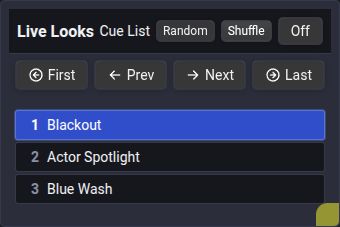
In Cue List view, functions appear as a numbered vertical list. A function can appear more than once, with its own label, color, and scene transition settings on each entry. In the widget settings, each row shows the function name and type, with Transition, up/down arrows, Edit button and Remove button actions. Use the function-type filters and search in the picker below to add another cue.
- First, Prev, Next, and Last select cues in the current list order.
- By default, Prev stops at the first cue and Next stops at the last cue. Enable Loop Prev/Next in the widget settings to wrap around: Next on the last cue selects the first cue, and Prev on the first cue selects the last cue. The setting also applies to mapped controls and the Remote.
- On / Off controls whether the selected cue runs. Random and Shuffle preserve this setting: while Off, they only change the selection.
- Random selects another function without changing the cue order. All entries that refer to the current function are excluded, so duplicate entries do not cause an immediate repeat. Missing functions are skipped; if there is no alternative, selection stays unchanged.
Prepare dark fixtures for upcoming cues
Enable Dark Prep in the widget's Cue List settings to prepare movement, wheels and optics for each fixture's next illuminated use. It is off by default. The list can look across several dark scenes and use the initial pose of a future keyframe animation. It stops looking ahead at a Combo, Node Graph or unsupported animation, and does not predict states beyond an unexecuted keyframe timeline.
Preparation requires a physical Dimmer and skips lit or contested fixtures. It neither changes cue timing nor forces fixtures dark. An animation's own Preparation Time still begins when that animation is activated. Read the Dark Prep guide for the full workflow and limitations.
Optional Shuffle for Unordered Lists
Shuffle is hidden by default. Open the widget settings and enable Show Shuffle button to display it in the Dashboard and Remote.
Warning: Shuffle changes the saved cue order and has no undo command here. Enable it only for lists where the order does not matter, such as a collection of busking looks. Leave it disabled for a scripted show.

Pressing Shuffle rearranges the cues and selects the first entry after rearranging them. If another function is available, it becomes the first entry rather than the previously selected function. The function runs immediately when the list is On; Off remains Off. Labels, colors, transitions, and repeated entries stay attached to their cues.
The shuffled order is part of the project and remains after saving and reopening it. Disabling Show Shuffle button hides the button and prevents its MIDI or remote command from shuffling; it does not restore the old order.
Map Random and Shuffle to separate MIDI controls in Assign Mode. Random is also available in the Buttons view's Exclusive and Hold modes; Shuffle is exclusive to Cue List.
Read more in the Live Dashboard Guide and the Function Widget Manual.
Combo cues
A cue or scenario function tag can reference a Combo Function. Its All/Random mode selects the participants, independently of the widget's Random button. Switching overlapping Combos retains shared participants; a configured button transition applies to newly started scenes. Editing the shared definition changes its next activation.
Repeated entries may reference the same Combo. Moving between them while the list is On retains its activation and Random member choice; Off stops it. Newly inserted Combo tags in Scenario inherit the shared name, so a library rename updates those cue labels.