Rotary Knob Control
The Rotary Knob provides smooth 360-degree radial parameter tuning for continuous variables: LFO wave speeds, color cycle frequencies, audio trigger thresholds, and procedural Node Graph macro parameters.
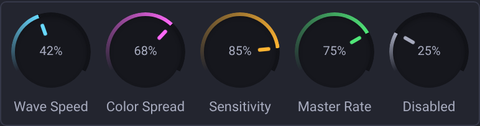
🕹️ Interaction Techniques
- Vertical Drag: Click and drag vertically upward/downward to adjust the dial, even when the pointer leaves its bounds.
- Mouse Wheel Scroll: Hover over a knob and hold
Ctrlwhile scrolling to adjust its value. - Fast Speed Adjustment (
Ctrl+ Drag): Increases rotation velocity for broad sweeps. - Micro-Precision Mode (
Shift+ Drag): Drops rotation sensitivity by 10× for surgical fine-tuning of oscillator frequencies. - Direct Value Typing: Right-click the dial to open its numeric value editor.
Direct value entry
Right-click a knob to enter a value in its working units, within the displayed minimum and maximum. The dial's usual percentage is shown as Current for reference. For example, a knob with a 0–255 range accepts 25.3 as a working value, rather than interpreting it as a percentage.
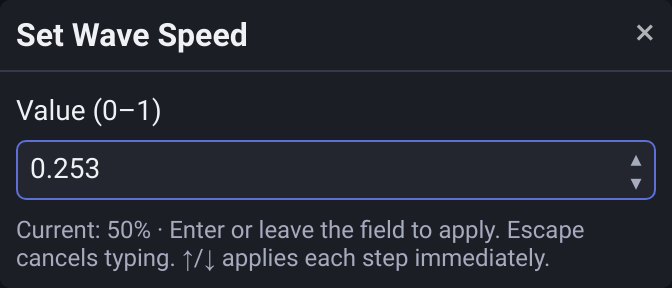
Finish typing and press Enter, or leave the field, to apply the value and close the editor. Up, Down and the step buttons apply immediately and keep the editor open. A step starts from the number you have typed, even if it has not yet been confirmed. Escape cancels the pending text and closes this editor; earlier steps remain applied.
A short normal click still toggles between minimum and maximum. Direct value entry is unavailable for disabled controls and in Assign Mode. On a Surface, the layout editor keeps its own right-click actions; use the numeric editor during execution. No touch gesture opens the numeric editor yet. See Numeric entry for decimals, empty fields and external updates.
🎛️ Hardware Endless Encoders
When mapped to hardware MIDI rotary encoders via Assign Mode, Unilighter automatically performs relative step accumulation. This ensures butter-smooth rotary adjustments without parameter jumps or value collisions.
Use Settings → General → Global Settings → MIDI encoder speed to slow down or speed up continuous encoder adjustments. 1× preserves the original step. Each Encoder binding can override this multiplier, including existing assignments edited in Bindings Manager. See Encoder speed.
Named ranges and pointer behavior
Fixture ranges are marked in the control color. Hovering can preview a named range; during a drag, the caption and highlight follow the current value rather than the range beneath the initial pointer position. A reversed analog profile changes the control direction. Knob dragging uses pointer capture without hiding or locking the cursor. It ends on release, lost capture or window focus loss. A short click toggles between the minimum and maximum values. Independent gestures allow another touch to operate a different control.
Release fixture parameters
On the Device page and in the Device Control Widget, Focus, Frost and Zoom have separate Release buttons above their knobs. The button appears while the parameter has manual control and returns it to the next source or default without releasing the other parameters. For a tag, it releases that head's parameter across the current group.
In Scene Editor, Reset removes the parameter from the scene instead; live manual control stays active.