Spatial Matrix & Choreography Animation Editor
The Choreography Editor (Matrix Animation) is Unilighter's spatial animation engine. Instead of animating individual fixture channels on separate linear timelines, Choreography projects dynamic 2D visual media, procedural wave generators, and raster keyframes onto a virtual stage canvas. Physical lighting heads and multi-emitter LED bars mapped onto the canvas sample these pixel values in real time.
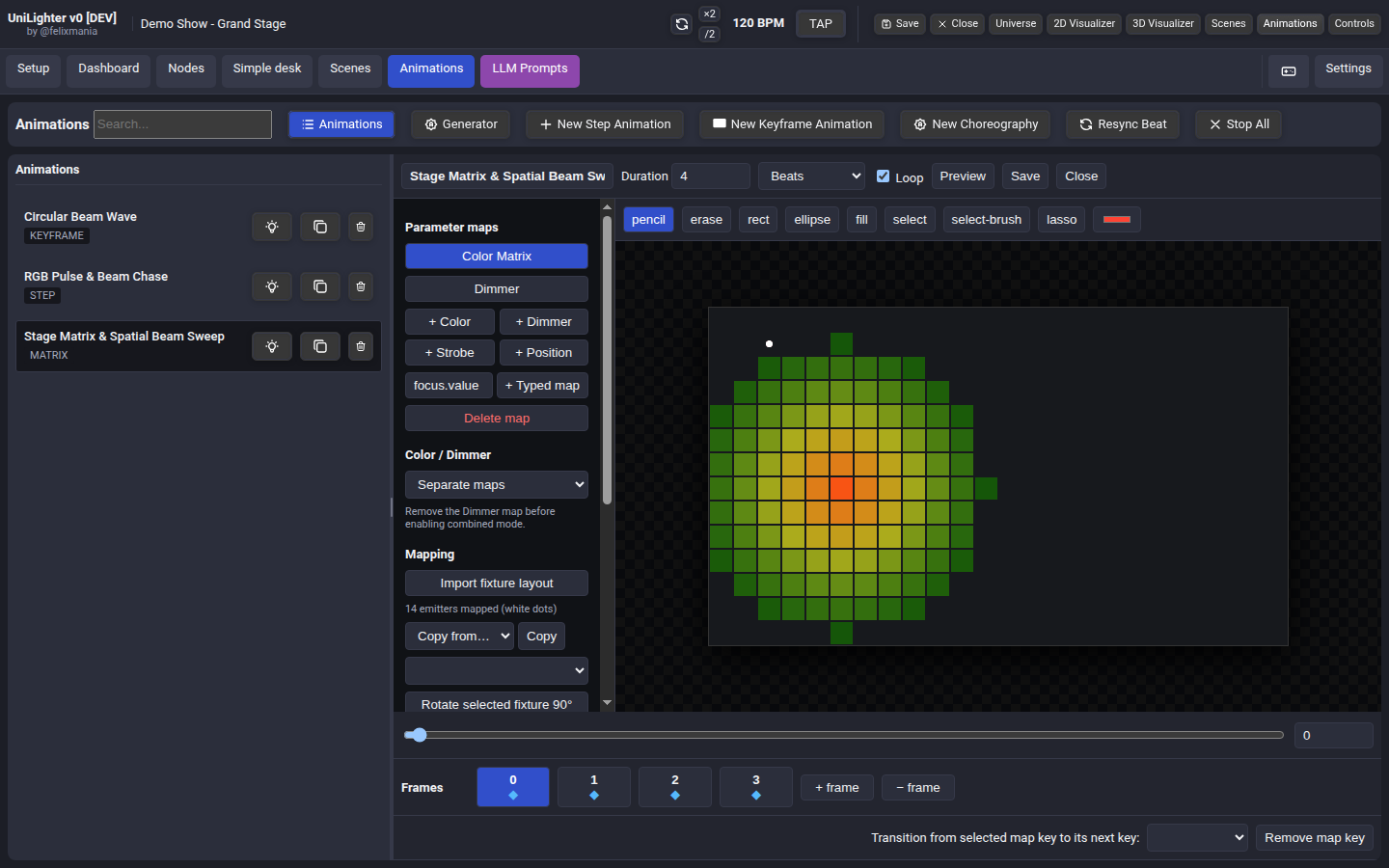
🌐 Spatial Canvas & Emitter Mapping
At the core of the Choreography engine is a spatial coordinate system that bridges your physical stage layout with virtual 2D graphics:
1. Emitter Mapping
- Physical Heads to Virtual Pixels: Each physical fixture (or individual multi-head emitter on LED bars) is assigned a discrete pixel coordinate \((X, Y)\) on the canvas.
- Import Fixture Layout: Clicking Import fixture layout automatically reads the spatial \((X, Y)\) positions of your fixtures from the stage setup/visualizer and distributes them proportionally across the canvas.
- Visual Emitter Indicators: Mapped fixtures appear as dots on the canvas:
- White Dot: Successfully mapped emitter capable of rendering the active parameter map.
- Red Dot: Emitter does not support the parameter (e.g. attempting to map a dimmer-only blind on a Color map).
- Transform Tools:
- Rotate 90°: Rotates the selected fixture's head orientation (crucial for vertical vs horizontal LED bars).
- Nudge (
←,→,↑,↓): Micro-adjust individual fixture emitter positions on the pixel grid. - Copy Mapping: Duplicate the emitter mapping configuration from another Choreography project without re-mapping.
- Expand Canvas: Resize the canvas grid (up to \(512 imes 512\) pixels) and choose anchor alignment (
center,top-left, orbottom-right) to preserve existing artwork.
🎨 Multi-Parameter Spatial Maps
A single Choreography animation can run multiple synchronized parameter layers simultaneously:
| Parameter Map | Type | Description |
|---|---|---|
| Color | color |
2D HSV / RGB color mixing across the stage array |
| Dimmer | scalar |
Intensity gradient sweeps and master brightness masks |
| Strobe | scalar |
Spatial strobe pulses, radial flashes, and blinder waves |
| Position | position |
Spatial Pan & Tilt orientation maps |
| Custom Typed Map | scalar |
Any custom fixture parameter (e.g. focus.value, zoom.value, prism.value) |
Color / Dimmer Integration Mode
When creating color animations, choose how dimmer intensity interacts with hue:
- Separate Maps: Dimmer and Color run as distinct layers. You can paint static colors while driving dimmers with a procedural wave generator.
- Color Controls Dimmer: The brightness (\(V\)) component of the painted color directly modulates the fixture's dimmer channel, saving you from creating a separate dimmer map.
🖌️ Drawing & Pixel Canvas Tools
The central workspace provides a full raster graphics suite tailored for lighting design:
Drawing Tools
- Pencil: Paint individual pixels with the active color, position, or intensity value.
- Erase: Clear pixels back to transparent (
null), allowing lower-priority show cues to pass through untouched. - Rect & Ellipse: Draw geometric bounding boxes or filled circles across the fixture array.
- Fill (Flood Fill): Instant bucket fill for contiguous regions of matching values.
Selection Tools
- Select (Marquee): Rectangular box selection of pixels.
- Select Brush: Paint freeform selection masks over specific emitter clusters.
- Lasso: Draw arbitrary polygonal selection perimeters around complex stage zones.
Precision Input Sliders
Depending on the active parameter map, the top toolbar adapts its input controls:
- Color Map: Full-spectrum HEX color picker with real-time HSV translation.
- Position Map: 2D Pan and Tilt sliders (\(0.00 - 1.00\)).
- Scalar Maps: Value slider for Dimmer or Strobe frequency (\(0.00 - 1.00\)).
🌊 Procedural Spatial Generators
Instead of drawing each frame by hand, add real-time mathematical generators that calculate fluid motion across the 2D space:
- Sweep: A directional linear gradient wash traveling at an adjustable angle (
direction) and speed. - Wave: A continuous sinusoidal wave sweeping across the canvas, ideal for organic liquid lighting effects.
- Radial: An expanding or contracting circular ripple radiating outward from a defined center point \((cX, cY)\).
- Noise: Organic procedural fractal noise (Perlin/Simplex) for fire, water, and atmospheric cloud textures.
Generator Controls
- Speed: Frequency and velocity of the procedural motion.
- Direction: Angular trajectory in degrees (\(0° - 360°\)).
- Center X / Y: Origin anchor for radial ripples.
- Size & Softness: Width of the wave crest and diffusion falloff at the edges.
- Seed: Pseudo-random variation seed for noise patterns.
🚀 Raster Motion Paths
The Raster Motion system allows you to animate floating graphic elements across the canvas over time:
- Select a pattern of pixels using Select or Lasso.
- Click Lift cut or Lift copy to detach the selection into a floating raster sprite.
- Move the playhead to a timestamp, adjust the \((X, Y)\) coordinates, and click Add motion key @ playhead.
- Enable Ping-pong if you want the element to bounce back and forth smoothly.
- Click Bake to raster keys to automatically compile the floating motion trajectory into raster keyframe frames.
⏱️ Timeline & Frame Transitions
The bottom footer controls animation duration and frame interpolation:
Timeline Modes
- Beats (
beat): Synchronizes timeline duration directly to musical tempo. Frame timestamps represent musical beats (e.g.0,1,2,3). - Milliseconds (
time): Operates on a standard wall-clock millisecond scale.
Frame Sequencing
- Add / Delete Frames (
+ frame/− frame): Create key timestamps along the timeline. - Frame Markers:
◆(Diamond): Indicates that the active parameter map has an explicit raster key stored at this frame.·(Dot): Indicates that this frame exists for other maps, but the current map interpolates through it.
- Transition Edges: Select how pixels transition between consecutive frames:
Linear: Smooth direct morphing.Ease In / Ease Out / Ease In-Out: Natural acceleration and deceleration.Sine / Cubic: Harmonic wave easing.Step (Immediate): Instantaneous snap cuts with zero transition fade.
Live Preview & Output
- Preview Button: Toggle live output streaming directly to physical DMX interfaces and the 3D Stage Visualizer.
- Scrub Bar: Drag the playhead slider to scrub through the spatial choreography in real time.
Phone workflow
The choreography editor adapts to phones. Open an animation from the list and use its back navigation or the Animations tab to return. Console choreography samples its configured fixture layout; the separate Site Planner is an independent planning workspace.
Pausing and restarting playback
Pause keeps the current position. If you scrub while paused, resuming continues from the selected position; the time spent paused does not advance or delay playback. This applies to time and beat timelines. When a Combo Function uses Combo: Running Functions → Restart, a paused Choreography resumes from the beginning immediately. Keep Running preserves its paused state and position.