# Combo Functions
A Combo starts a coordinated look made from existing Scenes, Animations and Node Graphs. For example, keep a singer's front light together with a movement effect. Members remain separate functions that you can edit and reuse.
 ## Create a Combo
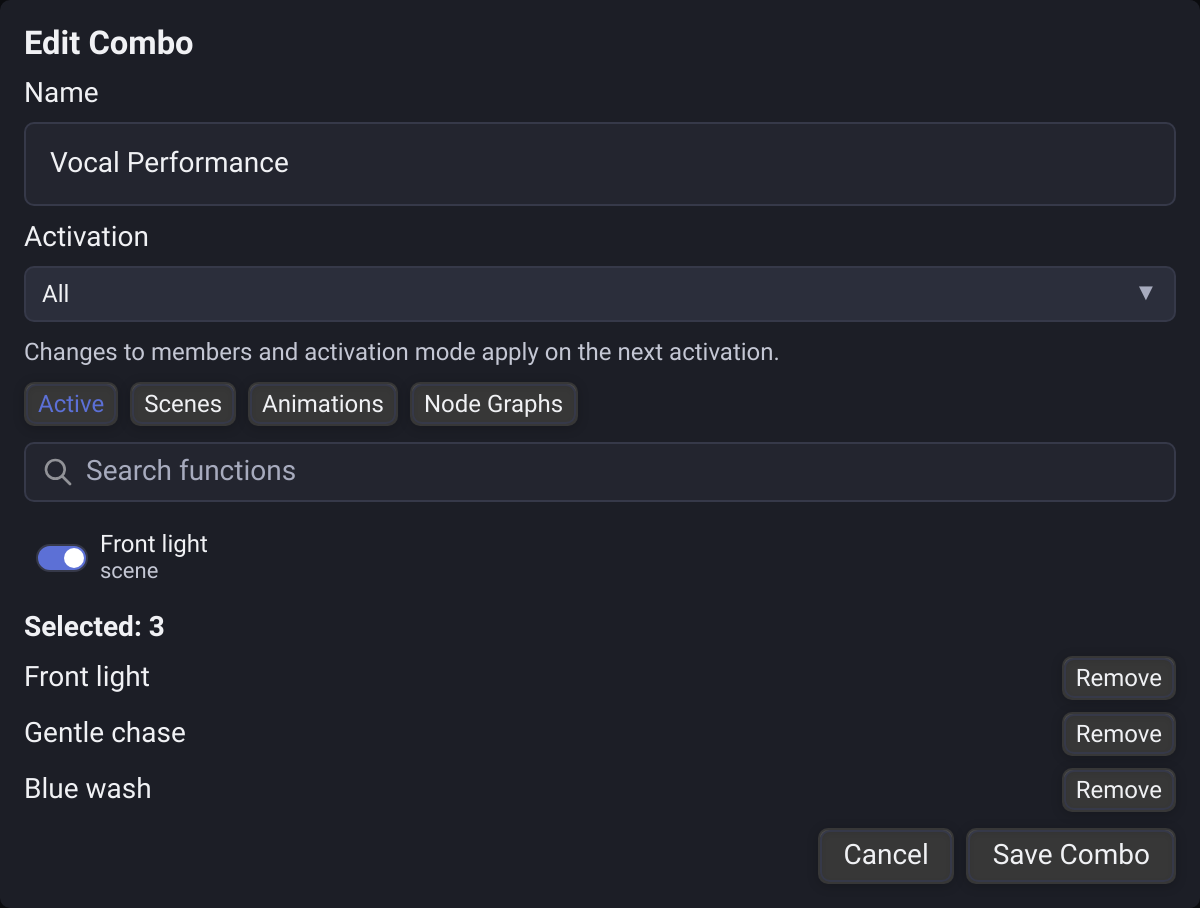
Open **Scenes → Combo → Create Combo**, enter one name and select its members. The **Active** tab opens first and lists functions currently running. Switch to **Scenes**, **Animations** or **Node Graphs** to add others. Selected members stay selected when playback stops or you change tabs.
You can also choose **Create Combo** inside a [Function Widget](https://unilighter.cc/info/for-ai/docs/dashboard/widget-function.md). The editor appears directly in the widget settings. **Save Combo** creates the reusable definition, adds its button and returns to the settings; **Cancel** returns without creating anything. In Scenario, saving inserts the new cue at the preserved text cursor. Select an existing Combo in another widget to reuse it.
A Combo can have one member. Empty definitions can be saved and repaired, but cannot start. Nested Combos are not supported.
## All and Random
- **All**, the default, starts every available member together.
- **Random** starts exactly one available member at each new activation, remembers that choice until release, and avoids repeating it immediately when alternatives exist. A sole remaining member is still selectable.
The widget's own **Random** button selects a widget button. A Random Combo then makes its separate choice of member.
## Switch looks and share functions
The widget's **Shared Functions** setting controls what happens when a newly activated Combo includes a running function:
- **Keep Running**, the default, retains its playback phase, outputs and launch priority.
- **Restart** resets running animations and graph phases while retaining their output sources. A paused Choreography resumes from the start immediately, without waiting for the time spent paused. Running scenes remain unchanged in both modes.
When switching overlapping Combos in **Exclusive**, **Cue List** or **Scenario**, common participants stay running. Stopping a Combo releases its participation; functions still used independently or by another Combo continue. Several cues can reference the same Combo: moving between those entries keeps its current activation and Random choice until the list is switched off.
A function that is actually off starts when a fresh Combo activation needs it. A repeat activation of the same already-active Combo keeps the first launch settings and its Random choice.
## Toggle, Hold and manual stops
**Toggle** turns the logical Combo on or off. **Hold** keeps it active until the final holding source releases, including local and remote controls. Explicitly switching the Combo off overrides existing holds; those old releases cannot stop a later activation. A focused button also supports holding Space or Enter: moving focus away releases that keyboard hold while other holding sources continue. Assign Mode blocks new keyboard activation and still allows an existing hold to release. Switching to another window releases keyboard and pointer holds; connected MIDI and OSC holds continue until their own release or disconnect. A held source converted in the editor can still release there, while new activation remains blocked.
You can stop an individual member directly. It stays off until a fresh activation needs it. The Combo still shows **Active**, even if all its members were stopped manually. Its next Toggle turns the Combo off; the following one starts a new activation. There is no partially active state.
A button's scene transition applies to newly started scenes in the Combo. Already-running scenes are not faded or reapplied by that transition.
## Edit, rename and convert
The library's **Edit** action uses the same editor as the widget. Changing members or All/Random affects the next activation; the current selection continues until stopped. **Duplicate** creates an independent definition.
New Combo buttons and inserted Scenario cues inherit the shared function name, so a library rename updates their displayed text. Editing a button's label creates a local override. **Reset to Function Name** prepares inherited naming in the button editor. **Save** applies it, so later library renames update that button too; **Cancel** preserves the saved local label.
In the widget settings, use **Edit Combo** beside an assigned button to edit its shared definition directly. **Edit Button** opens its local label and colour settings. From there, **Convert to Combo** opens the embedded editor with the original function selected; choose its name and any additional members, then use **Save Combo** to convert. **Cancel** leaves the original button intact. The button keeps its position, colour, existing label, transition and assignments. A running source transfers on save without a restart, including a scene whose button transition has already finished; independent uses continue. Stopping the converted Combo or releasing its Hold releases the converted source's participation and its scene priority layers. Independent launches keep their own layers; a layer shared at the same priority remains while an independent launch still uses it. Project saving excludes layers held only through the Combo, including after conversion or switching from a direct button. The same embedded editor opens from a Scenario cue's context menu.
## Delete functions safely
Deleting a Scene, Animation, Node Graph or Combo with linked controls opens one confirmation showing the affected locations.
## Create a Combo
Open **Scenes → Combo → Create Combo**, enter one name and select its members. The **Active** tab opens first and lists functions currently running. Switch to **Scenes**, **Animations** or **Node Graphs** to add others. Selected members stay selected when playback stops or you change tabs.
You can also choose **Create Combo** inside a [Function Widget](https://unilighter.cc/info/for-ai/docs/dashboard/widget-function.md). The editor appears directly in the widget settings. **Save Combo** creates the reusable definition, adds its button and returns to the settings; **Cancel** returns without creating anything. In Scenario, saving inserts the new cue at the preserved text cursor. Select an existing Combo in another widget to reuse it.
A Combo can have one member. Empty definitions can be saved and repaired, but cannot start. Nested Combos are not supported.
## All and Random
- **All**, the default, starts every available member together.
- **Random** starts exactly one available member at each new activation, remembers that choice until release, and avoids repeating it immediately when alternatives exist. A sole remaining member is still selectable.
The widget's own **Random** button selects a widget button. A Random Combo then makes its separate choice of member.
## Switch looks and share functions
The widget's **Shared Functions** setting controls what happens when a newly activated Combo includes a running function:
- **Keep Running**, the default, retains its playback phase, outputs and launch priority.
- **Restart** resets running animations and graph phases while retaining their output sources. A paused Choreography resumes from the start immediately, without waiting for the time spent paused. Running scenes remain unchanged in both modes.
When switching overlapping Combos in **Exclusive**, **Cue List** or **Scenario**, common participants stay running. Stopping a Combo releases its participation; functions still used independently or by another Combo continue. Several cues can reference the same Combo: moving between those entries keeps its current activation and Random choice until the list is switched off.
A function that is actually off starts when a fresh Combo activation needs it. A repeat activation of the same already-active Combo keeps the first launch settings and its Random choice.
## Toggle, Hold and manual stops
**Toggle** turns the logical Combo on or off. **Hold** keeps it active until the final holding source releases, including local and remote controls. Explicitly switching the Combo off overrides existing holds; those old releases cannot stop a later activation. A focused button also supports holding Space or Enter: moving focus away releases that keyboard hold while other holding sources continue. Assign Mode blocks new keyboard activation and still allows an existing hold to release. Switching to another window releases keyboard and pointer holds; connected MIDI and OSC holds continue until their own release or disconnect. A held source converted in the editor can still release there, while new activation remains blocked.
You can stop an individual member directly. It stays off until a fresh activation needs it. The Combo still shows **Active**, even if all its members were stopped manually. Its next Toggle turns the Combo off; the following one starts a new activation. There is no partially active state.
A button's scene transition applies to newly started scenes in the Combo. Already-running scenes are not faded or reapplied by that transition.
## Edit, rename and convert
The library's **Edit** action uses the same editor as the widget. Changing members or All/Random affects the next activation; the current selection continues until stopped. **Duplicate** creates an independent definition.
New Combo buttons and inserted Scenario cues inherit the shared function name, so a library rename updates their displayed text. Editing a button's label creates a local override. **Reset to Function Name** prepares inherited naming in the button editor. **Save** applies it, so later library renames update that button too; **Cancel** preserves the saved local label.
In the widget settings, use **Edit Combo** beside an assigned button to edit its shared definition directly. **Edit Button** opens its local label and colour settings. From there, **Convert to Combo** opens the embedded editor with the original function selected; choose its name and any additional members, then use **Save Combo** to convert. **Cancel** leaves the original button intact. The button keeps its position, colour, existing label, transition and assignments. A running source transfers on save without a restart, including a scene whose button transition has already finished; independent uses continue. Stopping the converted Combo or releasing its Hold releases the converted source's participation and its scene priority layers. Independent launches keep their own layers; a layer shared at the same priority remains while an independent launch still uses it. Project saving excludes layers held only through the Combo, including after conversion or switching from a direct button. The same embedded editor opens from a Scenario cue's context menu.
## Delete functions safely
Deleting a Scene, Animation, Node Graph or Combo with linked controls opens one confirmation showing the affected locations.
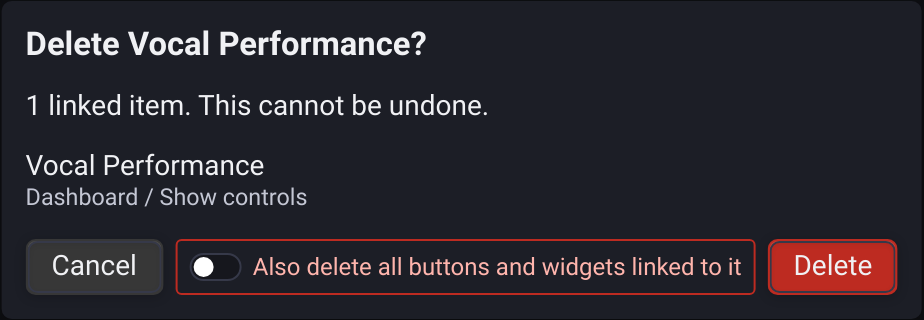 **Also delete all buttons and widgets linked to it** is **off by default**:
- Leave it **off** to delete only the function. Linked controls, assignments and Combo member references remain available for repair. They show **Missing Function** where supported; triggering a missing target does nothing. Open the button editor to choose a replacement. A missing keyframe animation also allows selecting a replacement in its widget.
- Turn it **on** to remove matching buttons, scenario function tags, dedicated widgets and memberships. Surrounding scenario text, group containers, unrelated children and other functions remain. Deleting a Combo never deletes its source functions.
Stopping or deleting a function releases its own running output. Creating a new project clears the previous project's Combo library and active participation. Saving a project retains Combo definitions and widget settings, but does not restore active Combos, their scene transitions or lighting owned only by them when reopening. Non-looping animations started only by a Combo are also excluded after they finish, so reopening does not restart them. Independently running functions retain their existing project-save behaviour.
See [Scenes](https://unilighter.cc/info/for-ai/docs/scenes.md), [Function Widget](https://unilighter.cc/info/for-ai/docs/dashboard/widget-function.md), [Cue Lists & Scenario](https://unilighter.cc/info/for-ai/docs/cuelists.md) and [Remote Control](https://unilighter.cc/info/for-ai/docs/remote-control.md).
**Also delete all buttons and widgets linked to it** is **off by default**:
- Leave it **off** to delete only the function. Linked controls, assignments and Combo member references remain available for repair. They show **Missing Function** where supported; triggering a missing target does nothing. Open the button editor to choose a replacement. A missing keyframe animation also allows selecting a replacement in its widget.
- Turn it **on** to remove matching buttons, scenario function tags, dedicated widgets and memberships. Surrounding scenario text, group containers, unrelated children and other functions remain. Deleting a Combo never deletes its source functions.
Stopping or deleting a function releases its own running output. Creating a new project clears the previous project's Combo library and active participation. Saving a project retains Combo definitions and widget settings, but does not restore active Combos, their scene transitions or lighting owned only by them when reopening. Non-looping animations started only by a Combo are also excluded after they finish, so reopening does not restart them. Independently running functions retain their existing project-save behaviour.
See [Scenes](https://unilighter.cc/info/for-ai/docs/scenes.md), [Function Widget](https://unilighter.cc/info/for-ai/docs/dashboard/widget-function.md), [Cue Lists & Scenario](https://unilighter.cc/info/for-ai/docs/cuelists.md) and [Remote Control](https://unilighter.cc/info/for-ai/docs/remote-control.md).