The **Effect Generator** builds a ready-to-play [keyframe animation](https://unilighter.cc/info/for-ai/docs/animations/keyframe.md) from your fixtures: running lights across every head of a bar, alternating groups, color chases, rainbows, circles and sweeps. You see the effect in a live preview while you adjust it, and you can reopen its settings later to change it.
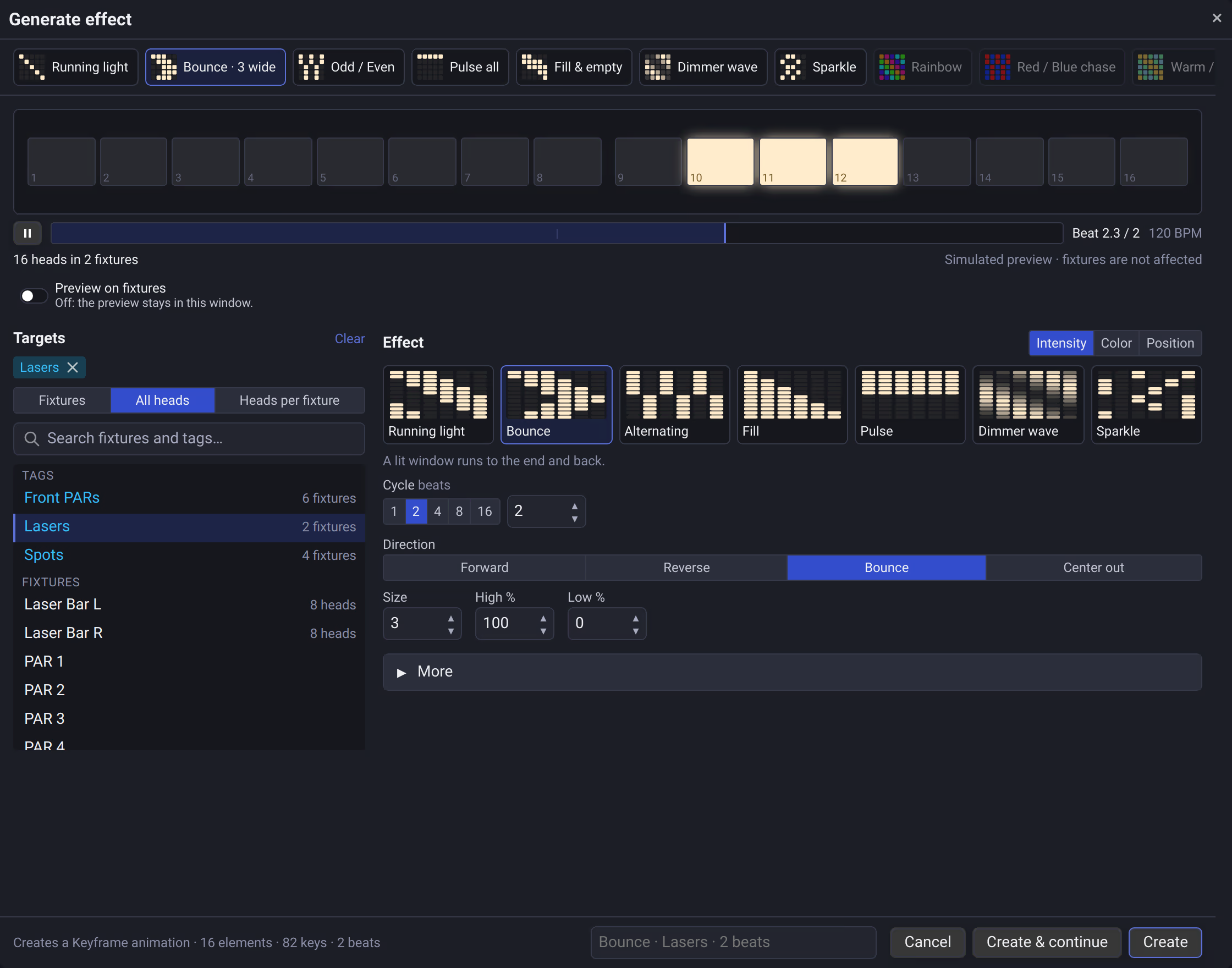 Open it with **Generate effect** on the [Animations](https://unilighter.cc/info/for-ai/docs/animations.md) page.
## Make an effect
1. **Choose targets.** Select tags or fixtures in the order they hang. Each selection appears as a chip above the list; remove it with its **×**. The list shows how many heads or fixtures each entry adds, or why it cannot take part, for example `no dimmer`.
2. **Choose how fixtures split into elements:**
- **Fixtures**: each fixture is one element; all of its heads move together.
- **All heads**: every head is its own element, so a chase runs across all heads of all selected fixtures in order.
- **Heads per fixture**: each fixture runs the effect over its own heads, and all fixtures run in sync.
**All heads** is selected automatically when a selected fixture has several heads with the needed control. A fixture's master channel is never treated as one of its heads. When a fixture has no head with its own control, its master channel is used for the whole fixture.
3. **Pick an effect.** Use **Intensity**, **Color** or **Position**, then a template. Every template shows a small picture of how it moves.
4. **Adjust it.** Change the cycle length, direction and the template's own settings. The preview updates immediately.
5. Press **Create**. The animation is added to the list and selected. **Create & continue** keeps the generator open with the same settings, so you can make a variant by changing one setting.
The name field suggests a name such as `Running light · Lasers · 2 beats`; type your own to replace it. The line next to it shows what will be created, including the number of elements and keyframes.
## Templates
| Type | Template | What it does |
| :--- | :--- | :--- |
| Intensity | Running light | A lit window of **Size** elements runs through the order. |
| Intensity | Bounce | The lit window runs to the end and back. |
| Intensity | Alternating | Groups take turns, such as odd and even. **Groups** sets how many groups there are. |
| Intensity | Fill | Elements switch on one after another. With **Bounce** they empty again. |
| Intensity | Pulse | Every element is on for **On time %** of the cycle, together or staggered by **Spread %**. |
| Intensity | Dimmer wave | A smooth brightness wave travels across the elements. |
| Intensity | Sparkle | **Lit at once** random elements flash in each step. The same **Random seed** always gives the same pattern. |
| Color | Rainbow | The whole hue circle flows across the elements. |
| Color | Color chase | Elements step through two to four colors. |
| Color | Color wave | A smooth blend between two colors travels across the elements. |
| Position | Circle, Pan sweep, Tilt sweep, Figure eight | Beams move around the **Center** within **Pan range %** and **Tilt range %**. **Mirror alternate elements** makes every second element move the opposite way. |
Intensity templates write only dimmers, color templates only hue and saturation, and position templates only pan and tilt, so you can layer an intensity effect over a color effect. Intensity steps switch instantly unless you raise **Fade %** under **More**. Hue always moves the short way round the color circle.
### Speed and direction
- **Cycle** is the length of one repetition. By default it is counted in beats and follows the project BPM; choose `1`, `2`, `4`, `8` or `16` or type another length. Turn on **Time in seconds** under **More** for a fixed speed.
- **Direction** offers **Forward**, **Reverse**, **Bounce** (chases and fills) and **Center out**, where elements at the same distance from the middle move together.
- **Spread %** sets how far apart in time the elements are: `0` moves all of them together, `100` spreads one full cycle across them.
## Quick presets
The row at the top holds ready-made settings such as **Running light**, **Odd / Even**, **Rainbow** and **Circle**. Pressing one applies it to the current targets and preview; nothing is created until you press **Create**. Presets the selected fixtures cannot play are dimmed and explain why when you point at them.
Press **Save preset** to keep the current settings as your own quick preset. Your presets are saved with the project and have a dashed outline. Double-click one to rename it; remove it with its **×**. Removing a preset does not change animations made with it.
## Preview, order and exclusions
The preview shows one cell per element in effect order, with a gap between fixtures. Intensity and color appear as the light output; position effects show each beam's path on a pan/tilt field. Use the play button and the bar below the cells to pause and scrub; the bar is marked in beats.
- **Drag** a cell to change the order.
- **Click** a cell to leave the element out. It moves to the end with a hatched pattern; click it again to include it.
- With the keyboard, **Alt + Left/Right** moves the focused cell and **Enter** excludes or includes it.
### Preview on fixtures
By default the preview stays in the generator window and fixture output does not change. Turn on **Preview on fixtures** to play the effect on the selected fixtures while you adjust it:
- **Blend with show** plays the preview over the running show; other fixtures keep their output.
- **Isolate** also dims every other fixture. For color and position effects the previewed heads are held at full so you can see them; intensity effects set their own levels.
The preview follows the playhead, restarts with every change and is never saved. It stops, and the show's own output returns, when you turn it off, close or cancel the generator, or start a preview in another editor. Only one preview runs at a time. Laser fixtures need a confirmation before the preview sends them output. Adding a laser that was not confirmed turns the preview off before the laser receives anything; turn it on again to confirm. Closing the generator forgets the confirmation.
## Change a generated effect later
A generated animation is a normal keyframe animation: it plays, fades and goes on dashboard buttons like any other, and its row is marked **generated**. When you open it, a bar above the timeline links it to the generator.
 - **Edit generator settings** reopens the generator with the saved targets and settings. **Apply** replaces the generated keyframes and timing; the name, priority, fades, BPM rate and Dark Prep settings stay as they are.
- If you changed keyframes, length, looping or master keyframes by hand, the bar says so, and **Apply** asks whether to **Create a copy** (the edited animation stays unchanged) or **Replace keyframes** (your hand edits are lost).
- **Detach** keeps the keyframes and removes the link, so the animation can no longer be changed through the generator.
Settings that use a tag follow the tag when it is renamed. Fixtures that were deleted are shown crossed out in the target list and are skipped.
## Limits
- The generator creates keyframe animations. Existing step animations are not changed.
- Heads without their own control of the chosen type are skipped; for example, a laser head that only has a shutter or a special channel cannot run an intensity effect.
- A single effect is limited to 20,000 keyframes. Select fewer elements or a simpler template when the generator reports the limit.